
Meeting Settings
Who can use this guide?
All Users
All Plans
The Settings menu lets you customize your Whereby experience based on what works best for you. Adjustments to your Notifications, language preference, camera/audio devices and more can be set here.
Desktop
You can access these settings by clicking on the Settings gear in the top right corner of any room:
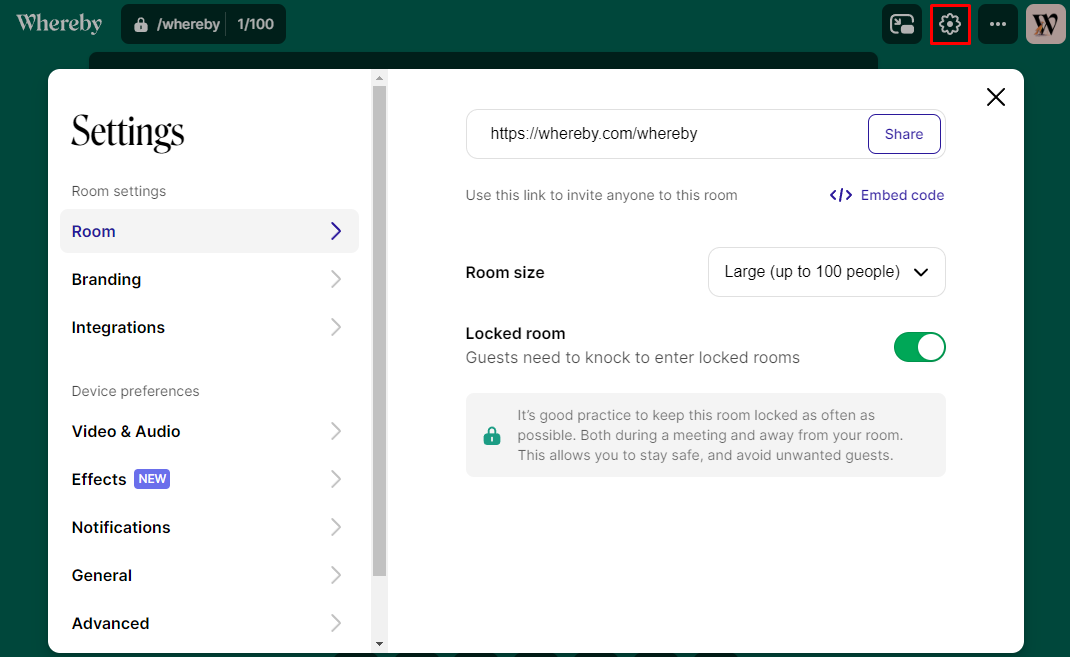
From there, navigate through the sidebar menu to choose between the different categories of settings:
Room
Branding/Theme
Change room theme (free plan)
Customize your room's branding (paid plans)
Upload a logo (paid plans)
Integrations
Enable or disable in-room integrations:
Google Drive
Miro whiteboard
Trello boards
YouTube
Video & Audio
Switch which camera, microphone, or speaker you're using
Set widescreen and HD video preferences
Adjust mirror settings for your own self-view
Set noise reduction preference
Effects
Choose a background effect filter that will mask your background accordingly
Notifications
Get notified when someone enters your room or knocks
General
Change language preference to English, Japanese, Norwegian, Spanish, Portuguese, German, French, Chinese (Complex), Czech, Danish, Dutch, Hindi, Hungarian, Italian, Polish, Swedish, and Ukrainian
Change default skin tone for emoji reactions
Advanced
Turn pre-call review on or off
Turn on low data mode: recommended for slower internet connections or to reduce CPU usage
Reduce visual effects: can also help reduce CPU usage
Automatically launch picture-in-picture: adjust if you want to have PIP open automatically Always, Only when switching tabs, Only when screen sharing, or Never
Enable keyboard shortcuts
iOS
Note:
At the moment, most Settings are only available in Safari on iOS.
The available settings that are in the iOS app:
Room settings: changing room size, locking/unlocking the room, background image, and notifications
Device settings: use (or don't use) phone earpiece speaker, portrait mode, and microphone mode
Join your room in Safari and click on the 3 horizontal dots in the top right corner to open settings:
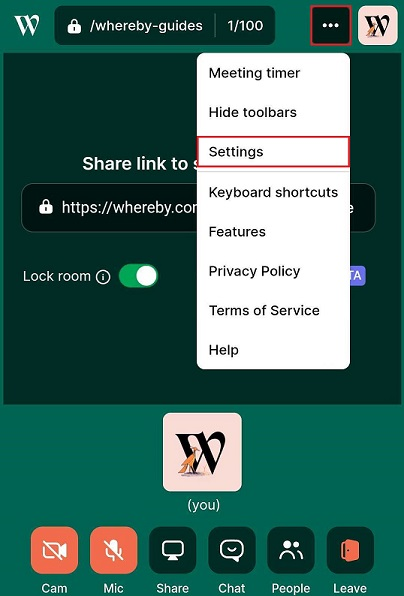
From there, navigate through the sidebar menu to choose between the different categories of settings:
Room
Branding/Theme
Change room theme (free plan)
Customize your room's branding (paid plans)
Upload a logo (paid plans)
Integrations
Enable or disable in-room integrations:
Google Drive
Miro whiteboard
Trello boards
YouTube
Video & Audio
Switch which camera, microphone, or speaker you're using
Set noise reduction preference
Set widescreen and HD video preferences
Adjust mirror settings for your own self-view
Effects
Choose a background effect filter that will mask your background accordingly
General
Change language preference to English, Japanese, Norwegian, Spanish, Portuguese, German, French, Chinese (Complex), Czech, Danish, Dutch, Hindi, Hungarian, Italian, Polish, Swedish, and Ukrainian
Change default skin tone for emoji reactions
Advanced
Turn pre-call review on or off
Turn on low data mode: recommended for slower internet connections or to reduce CPU usage
Reduce visual effects: can also help reduce CPU usage
Enable keyboard shortcuts
Android
To access Settings on Android, join your room in a Firefox or Chromium-based browser. Then, click on the 3 horizontal dots in the top right corner to open settings:
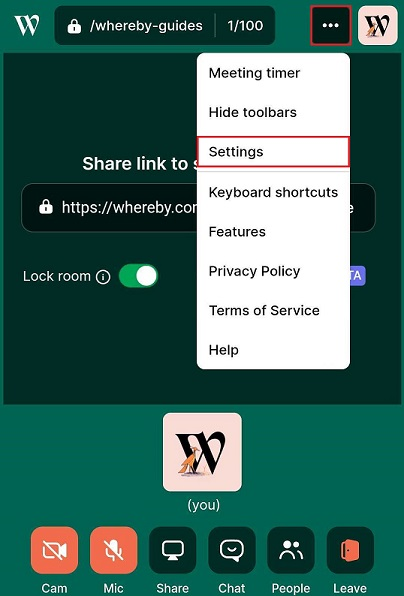
From there, navigate through the sidebar menu to choose between the different categories of settings:
Room
Branding/Theme
Change room theme (free plan)
Customize your room's branding (paid plans)
Upload a logo (paid plans)
Integrations
Enable or disable in-room integrations:
Google Drive
Miro whiteboard
Trello boards
YouTube
Video & Audio
Switch which camera, microphone, or speaker you're using
Set noise reduction preference
Set widescreen and HD video preferences
Adjust mirror settings for your own self-view
Effects
Choose a background effect filter that will mask your background accordingly
General
Change language preference to English, Japanese, Norwegian, Spanish, Portuguese, German, French, Chinese (Complex), Czech, Danish, Dutch, Hindi, Hungarian, Italian, Polish, Swedish, and Ukrainian
Change default skin tone for emoji reactions
Advanced
Turn pre-call review on or off
Turn on low data mode: recommended for slower internet connections or to reduce CPU usage
Reduce visual effects: can also help reduce CPU usage
Enable keyboard shortcuts