
Integrations
Who can use these integrations?
Room Owners and Participants
All Plans
Desktop or mobile browser (not available on iOS app)
At Whereby, we’re working hard to make video meetings easy for you and your business. We want to focus on delivering the most reliable, highest quality video experience possible; while still making it easy to use. Part of this means making remote collaboration easier, which is why we’ve created integrations with other popular tools!
Enable or Disable Integrations
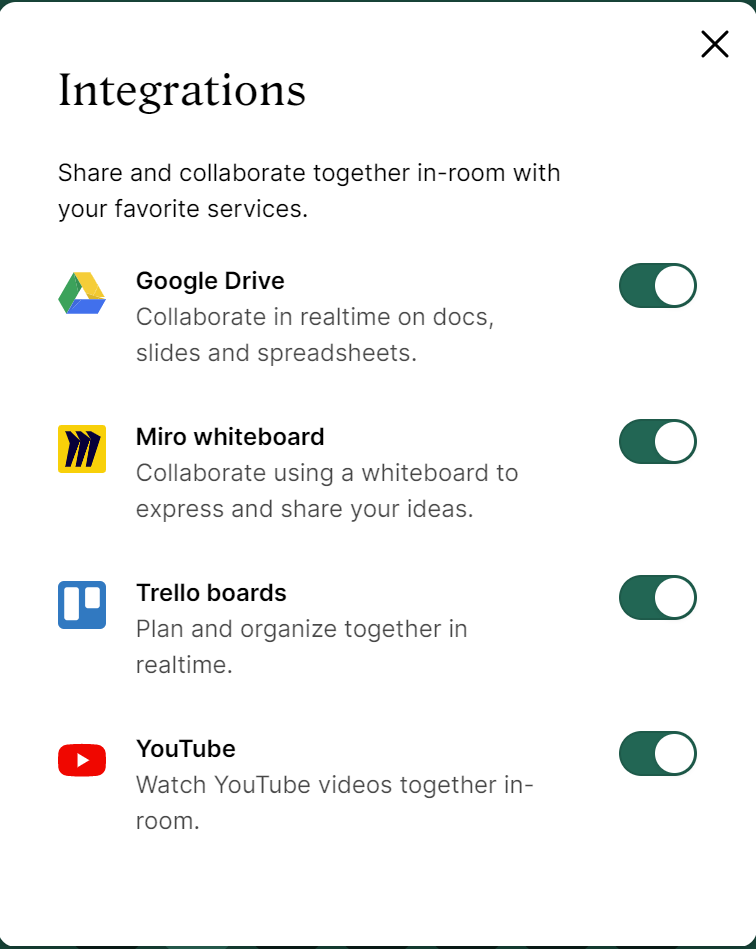
Integrations are enabled by default and can be used by all participants in a room. A Room Owner can disable an integration by selecting "Configure integrations." Integrations can be disabled or re-enabled at any time.
Start by hovering over the Share icon, and click Configure integrations:
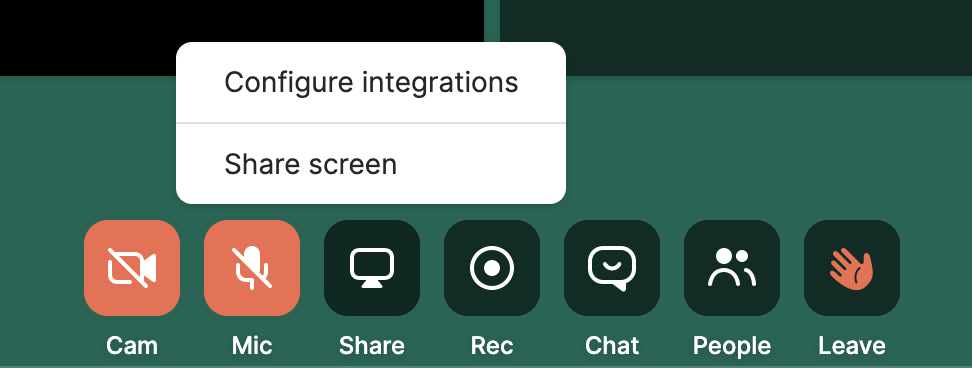
This brings up a menu where you can use the toggle switch enable or disable integrations:
Use Integrations
Google Drive
With the Google Drive integration, you can pull up a live, interactive view of any document in your Drive Folders (Sheets, Docs, Slides, etc). Everyone in the room can edit and make changes in real time. Perfect for collaborating without getting hundreds of comment notifications!
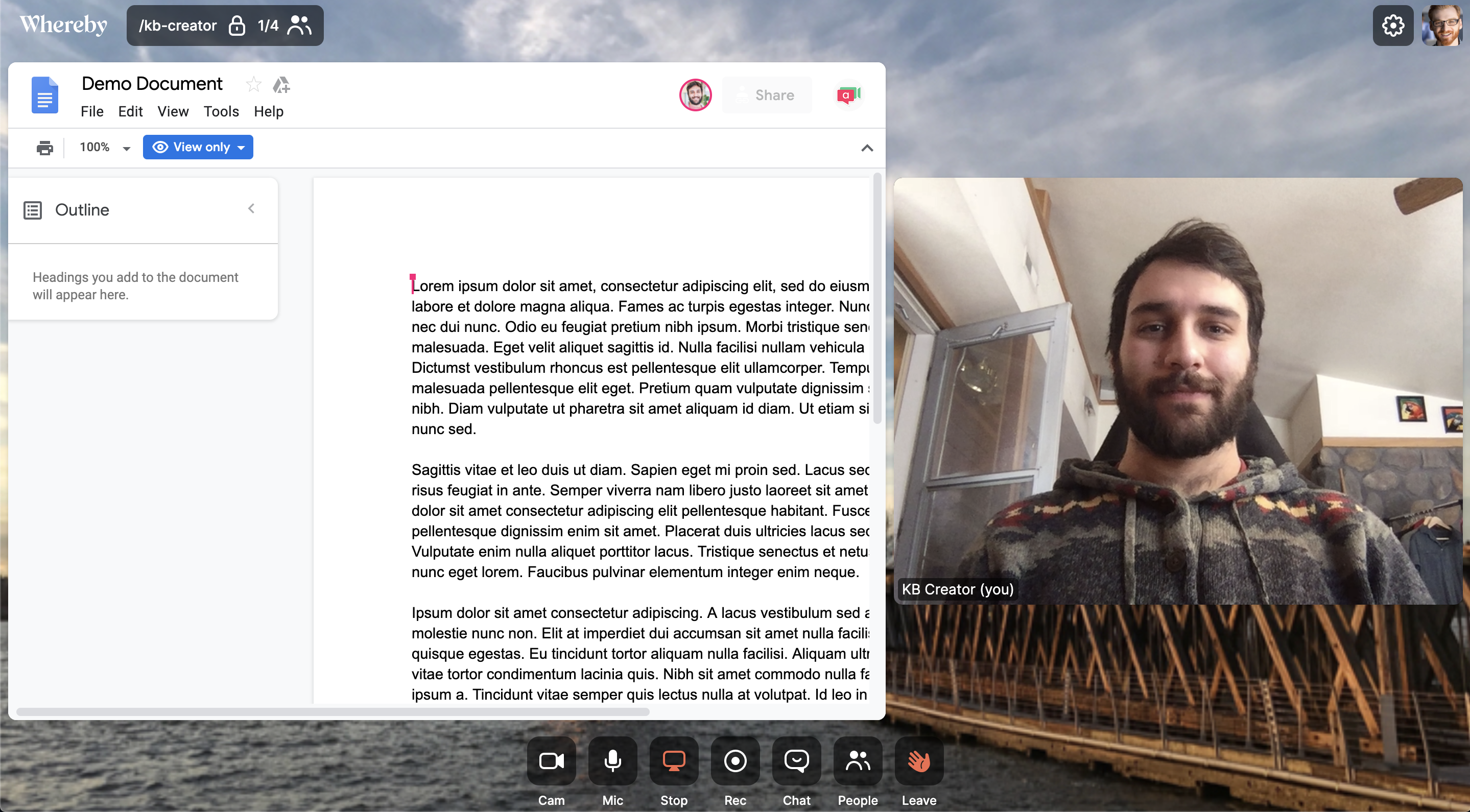
Be sure that Google Drive is enabled in your Integrations settings. Then select the Google Drive option in the Share menu and paste the link of your document.
Note
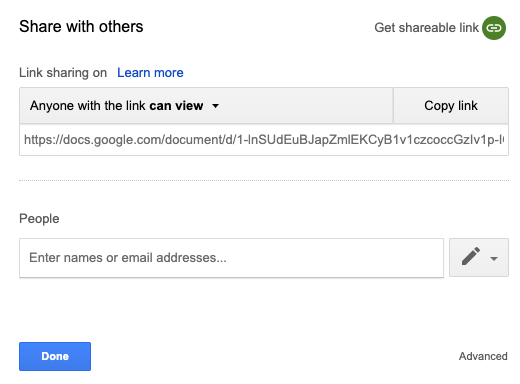
For the Google Drive integration to work, everyone in the room needs to have sharing permissions to the document and be signed in to a Google account. As a best practice, we usually recommend copying the Sharing Link so that anyone with the link automatically has access.
If you instead want to share a document for people to view rather than make live changes on, we recommend using a simple screen share rather than this integration.
Trello
Similar to the Google Docs integration, the Trello integration allows you to share a live, interactive view of a Trello kanban-style board so everyone can follow progress on projects and edit it together in real time.
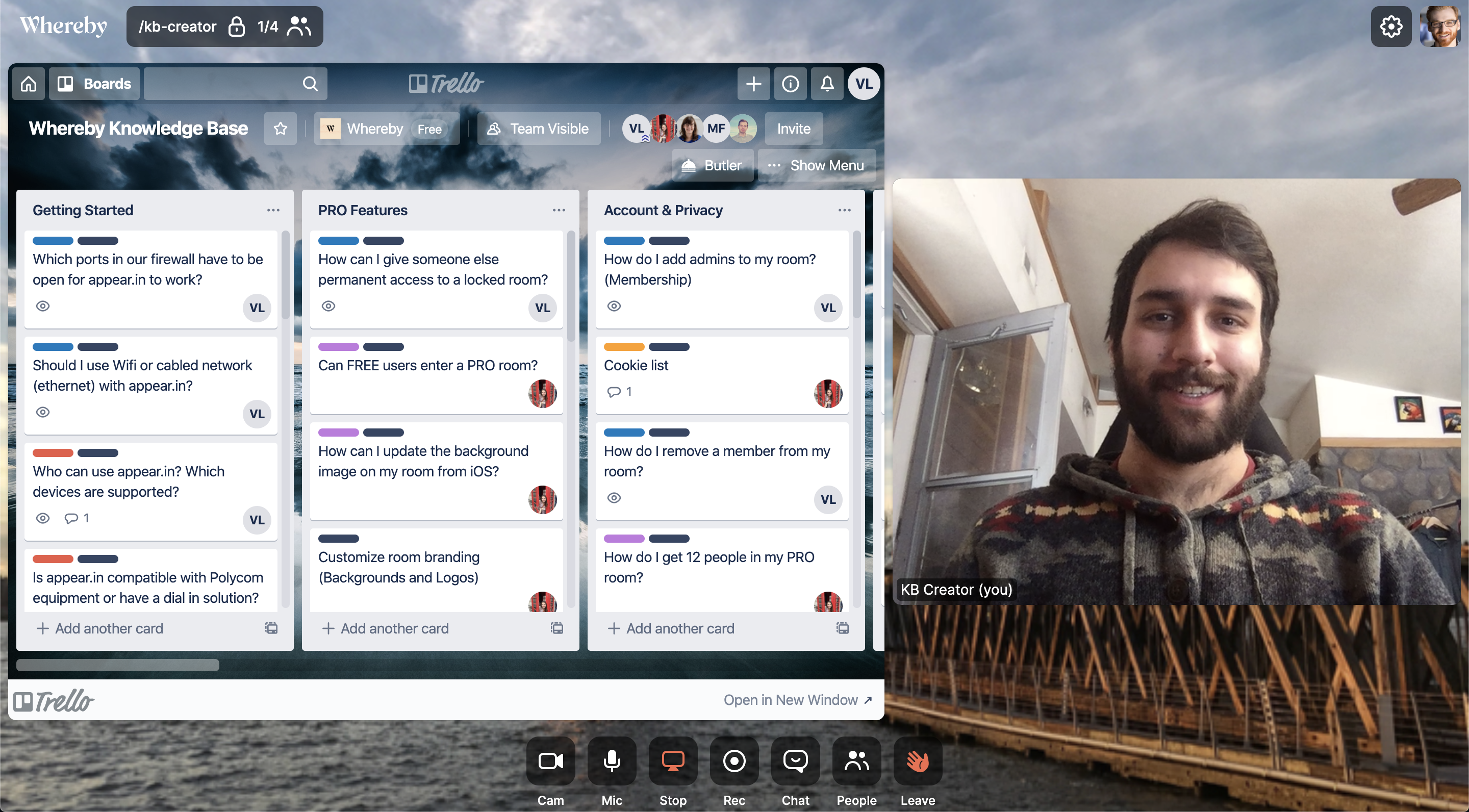
To use this, be sure that Trello has been enabled in your Integrations settings. Then select the Trello option in the Share menu and paste the link of your board.
YouTube
Note
When recording a meeting while using the YouTube integration, any audio from the video will not be captured in the recording. If you need to capture audio from the video you're viewing in the Whereby recording, we recommend sharing your screen with audio.
Our team always felt like we were asking each other: "Hey, have you seen that YouTube video where..." Now we have made it easier to watch YouTube videos together with other people in a Whereby room. No more sending links via email and chat, just hop in a room and enjoy a video together!
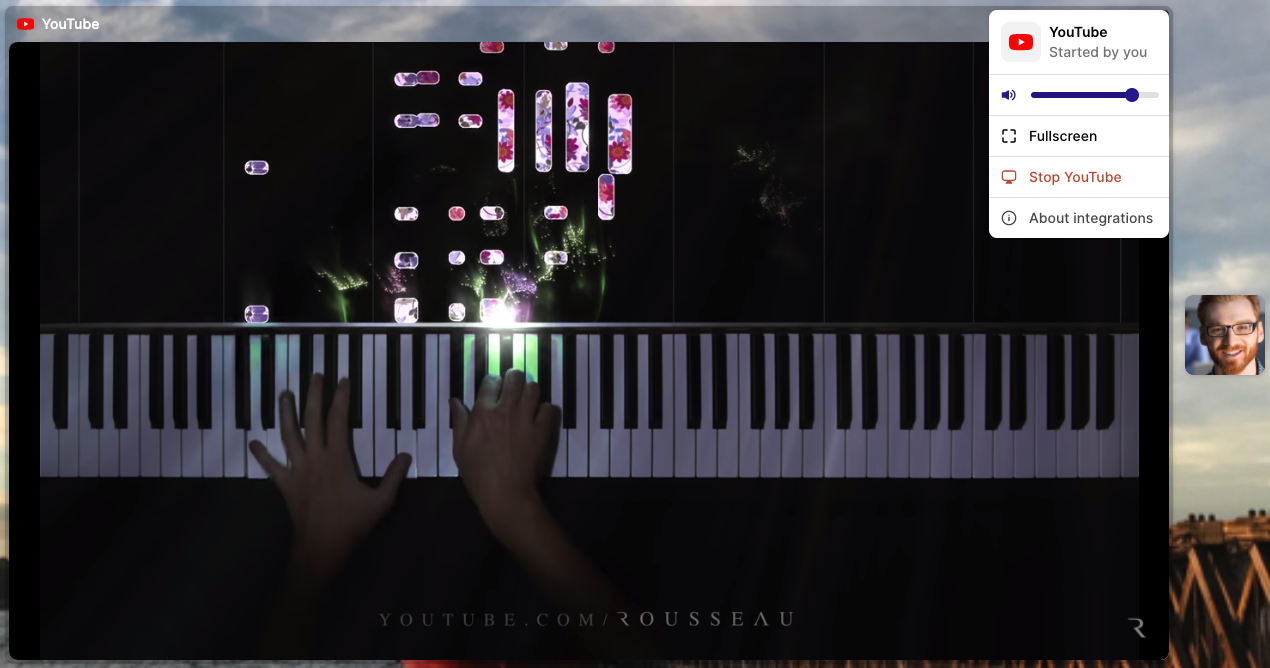
To use this, hover over the Share menu option, select YouTube, and paste in the link of the video that you want to share!
Host Controls
With the YouTube integration, the host can pause, play, and scrub (advance/go back to a different point) the video for everyone in the room, which makes it easy to discuss parts of the video as you go. If another user joins mid-meeting, the video will automatically scrub to the point in the video where the rest of the room is as well. Please note that the audio controls for the video only work locally, so raising or lowering the audio will only happen for the host and not other guests in the room.
Guest Controls
Guests will not have any control options for the video, but they can still locally pause the video if they need to by clicking on it (this will only happen for them, without pausing the video for others in the room). Additionally, users can click on the three dot menu in the top right corner of the video to see options for locally adjusting the volume, and to fullscreen the video if they want.
Troubleshooting Note
Is your video stopping early for some people? This problem can occur when each participant's clock is not 100% synchronized. Please ask participants to open the date and time preferences on their computer and select "set time automatically." That should fix the playback stopping early. There are instructions below for both Windows and Mac operating systems:
Set time on Windows: Start > Settings > Time & language > Date & time > Set time automatically
Set time on Mac: System Settings > General > Date & Time > Set time automatically
Miro
Note
In some cases there can be trouble sharing Miro boards due to restrictions at the company level. You can review Miro's sharing policy and check with your team to make adjustments accordingly.
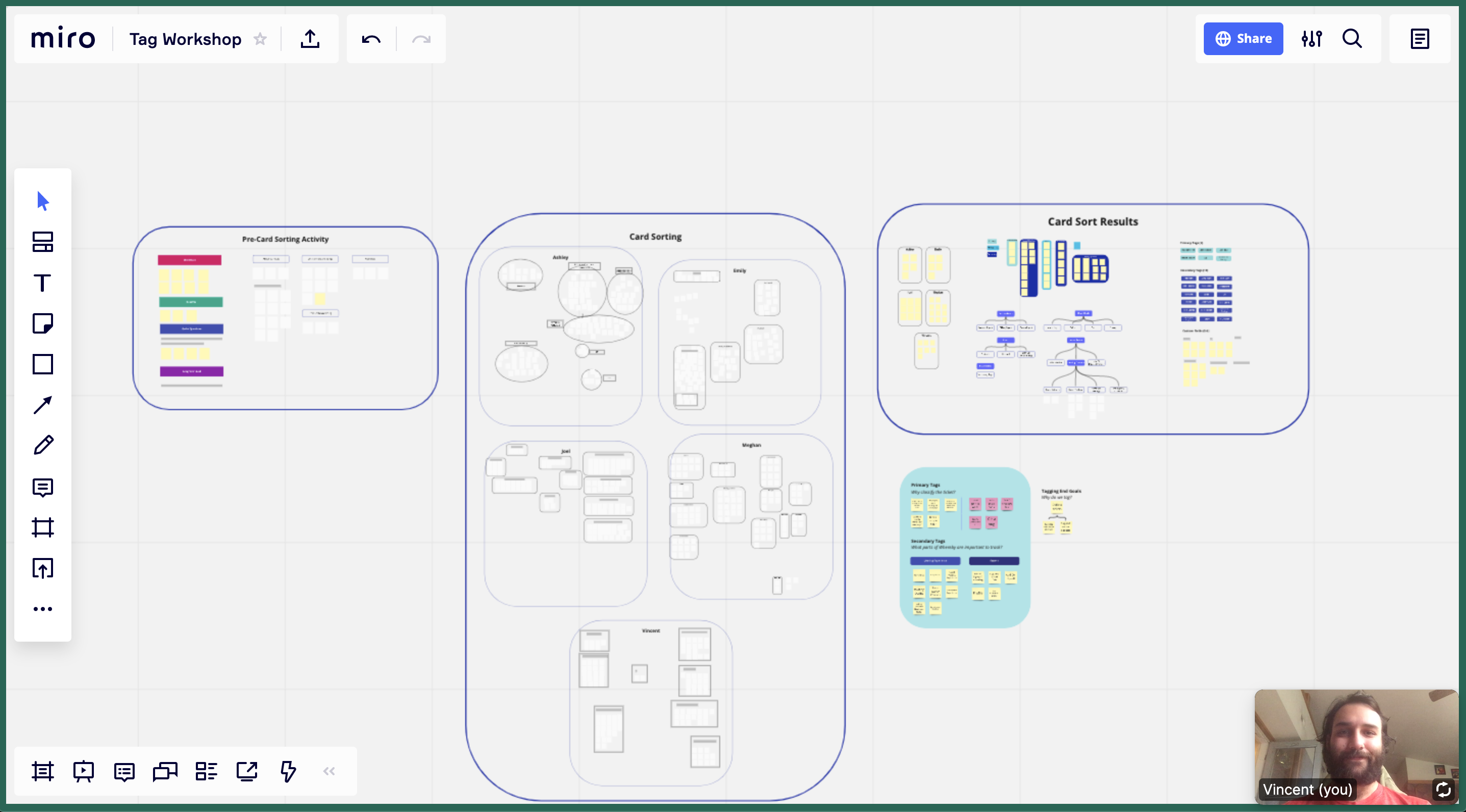
With the Miro integration, you can collaborate on your Miro boards in real-time with guests that you have in your room! Use the instructions below to use Miro in your room.
Click into the Share menu in the room, and select Miro from the list:
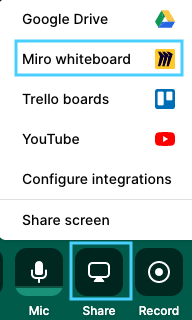
This will open up a small window, where you can sign in to your Miro account and see your boards. From here, you can select an existing board to share, or create a new one.
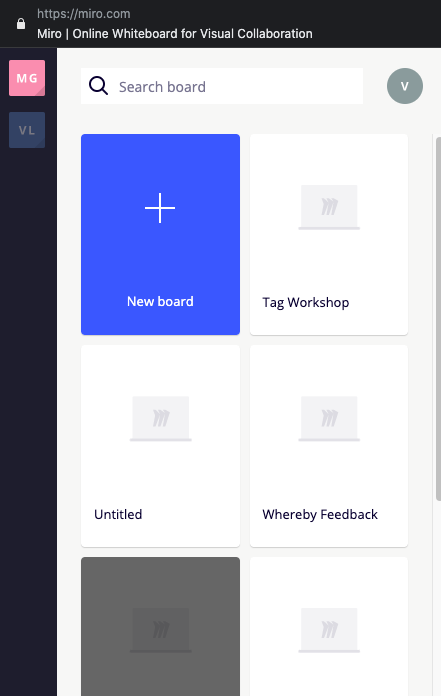
After selecting a board, you'll be prompted to select the permissions you'd like to set for the board. Make sure to select an option for all participants in the room to access the board and be able to see it:
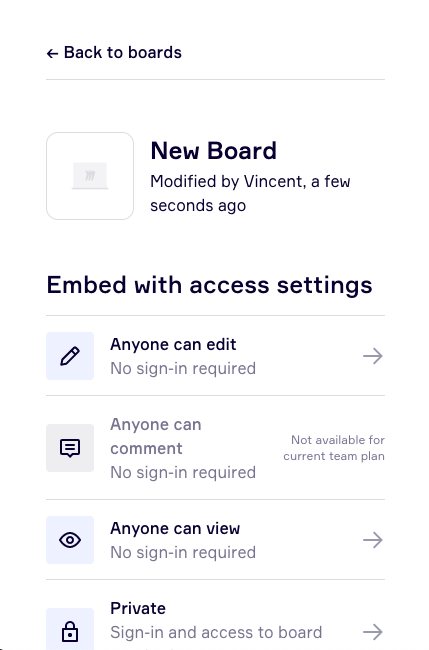
After making a selection, the pop up window will close and your board will load in the room!
My Shared Content isn't Showing
If you can access the main Whereby application, but shared content through an integration isn't showing up, it's likely being caused by a third-party cookie blocker. Make sure that you allow third-party cookies for the site. These are enabled by default in all browsers, but some users chose to disable them. If you have third-party cookies disabled, make sure to enable them or safelist the relevant integration domain in your browser.
Find out more about managing your cookie settings here: