
Room Toolbar
When you're in a room, you have a number of different options that are available in the Room Toolbar at the bottom of the screen. These options allow you to do things like temporarily mute your mic or cam, and access sharing features, like screen sharing.
See below for descriptions of the options available on various devices.
Desktop

Buttons
Cam - Disable or enable your camera. You can also hover over the button to access video settings and background effects
Mic - Disable or enable your microphone. You can also hover over the button to access audio settings and option for noise reduction.
Share - Share your screen with participants in the room. You can also hover over the button to access integrations.
Rec - Record your meeting (only available in paid plans, except for certain legacy Pro plans). You can also hover over the button to access past saved recordings.
Chat - Open the Chat pane to type to other participants in the room. You can also hover over the button to access Reactions.
People - Open the People pane to see other participants*
Leave - Leave the meeting room**
*Room owners will see the option to start a breakout group or co-location group as they hover over the icon (on paid plans only).
**Room owners will see the option to end the meeting for all participants as they hover over the icon.
Shortcuts
We have some shortcuts for disabling your Cam and Mic, as well as opening the chat window and more. This way, you can focus on your meeting and still control your devices with ease! Below are the shortcuts and what they do:
V - Enable/disable your camera
M - Enable/disable your mic
Space - Hold to toggle mute or unmute
C - Open the chat window
F - Show/hide the toolbars
Shift + L - Lock or unlock the room
P - Show or hide Picture in Picture
Shift + P - Pop out or pop in your own video
Shift + S - Start or stop sharing your screen
Double-click a video cell - Maximize or Exit maximize view
Shift + Double-click a video cell - Add or remove spotlight
iOS
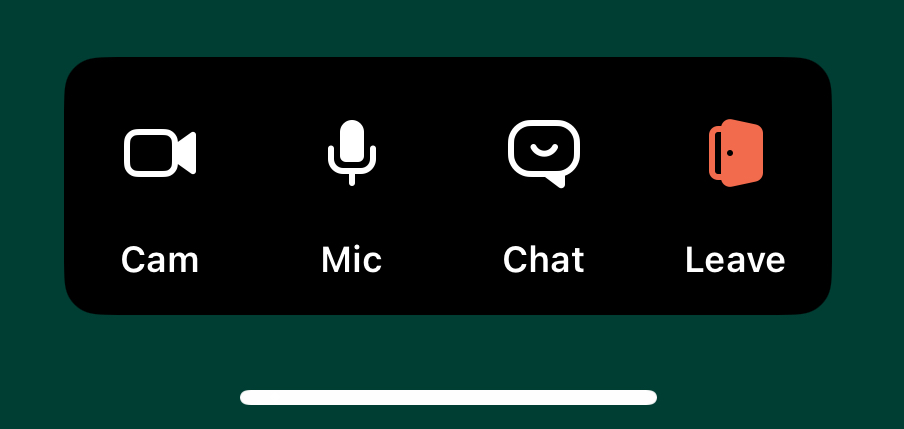
On iOS, you can access many different controls from the Room Toolbar. From left to right the options are:
Turn Camera On/Off
Turn Mic On/Off
Open Chat
Leave
Note: You can tap on the 'reverse arrow' icon on your camera image to swap between your front and back camera.
Android
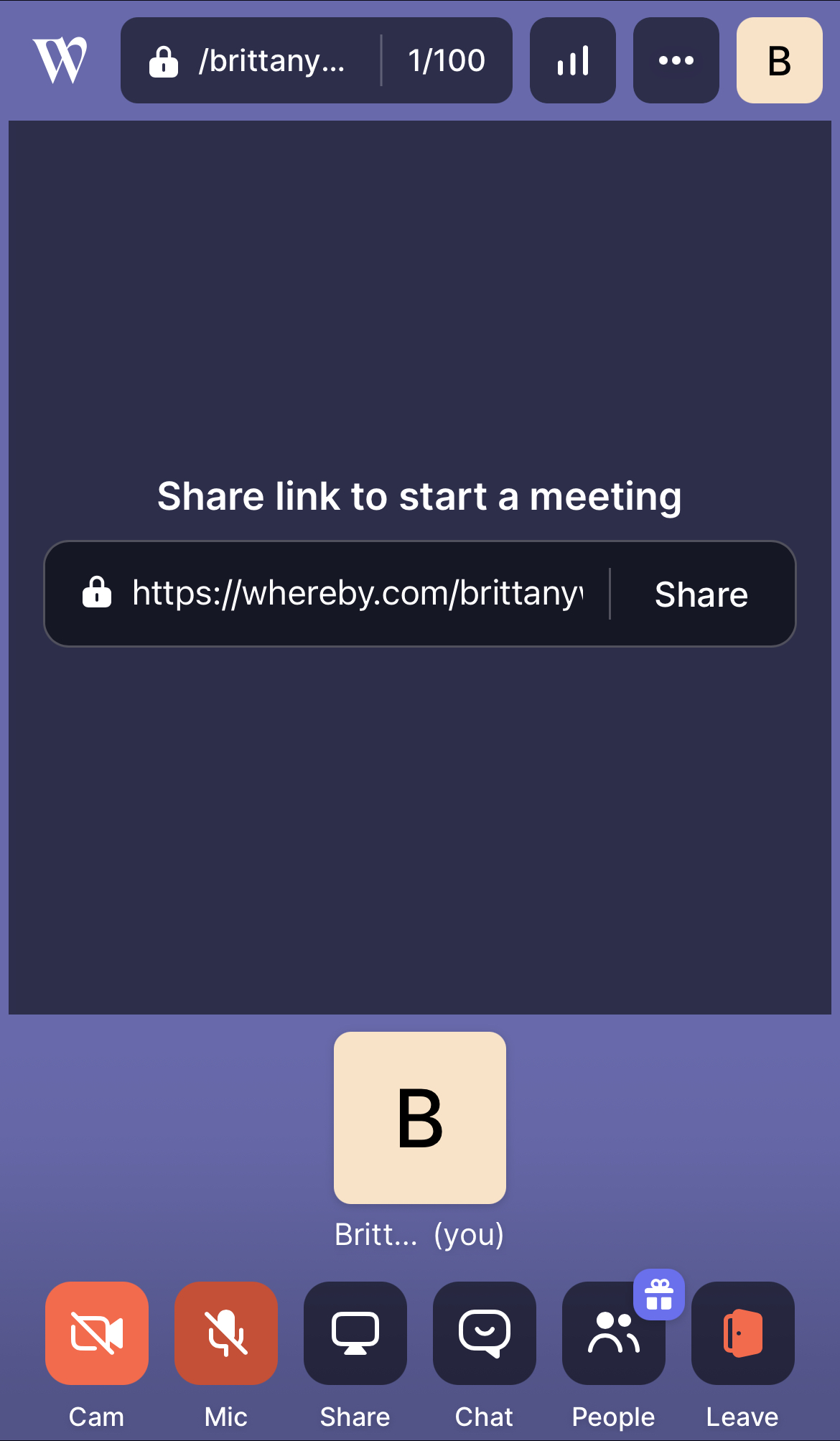
On Android, you can access many different controls from the Room Toolbar. From left to right the options are:
Turn Camera On/Off
Turn Microphone On/Off
Open Sharing options
Open the Chat
Open the People tab
Leave the Room