
Room Lock and Knocking
Who can use this guide?
Room Owners
Free, Pro, and Business
We introduced the Room Lock as a way to guarantee that your conversations in the room are private, and so that other users can't join mid-meeting and interrupt by accident. We recommend keeping your room Locked at all times and only unlocking it if you're expecting a lot of users to join. If users show up late to a meeting that you've already Locked, they can knock to be let in!
Business Users can also create customized Waiting Room information, so your guests will know exactly who they're about to meet with! See our Manage Profile Page article for information on how to set this up.
Note
For plans created from the fall of 2021 onwards, we've started updating security features relating to rooms. The room owner must be present to host a meeting, even if the room is unlocked. To learn more you can review our article here.
Desktop
Lock or Unlock the Room
Enter your room.
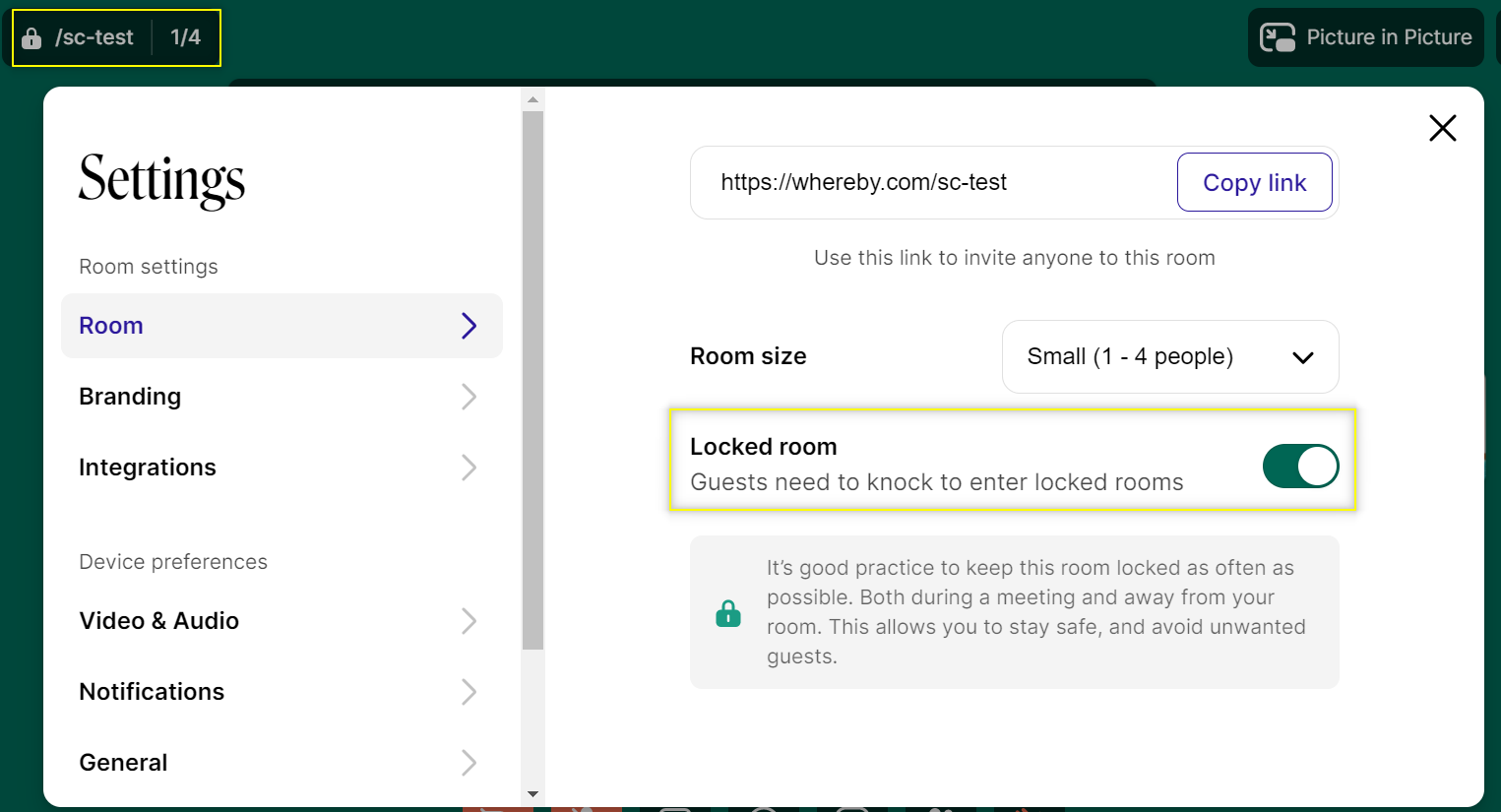
Click on the room name in the upper-left corner to open up the settings menu.
Use the toggle switch to Lock or Unlock the room. You can also use the shortcut key Shift + L.
Let in Knocking Users
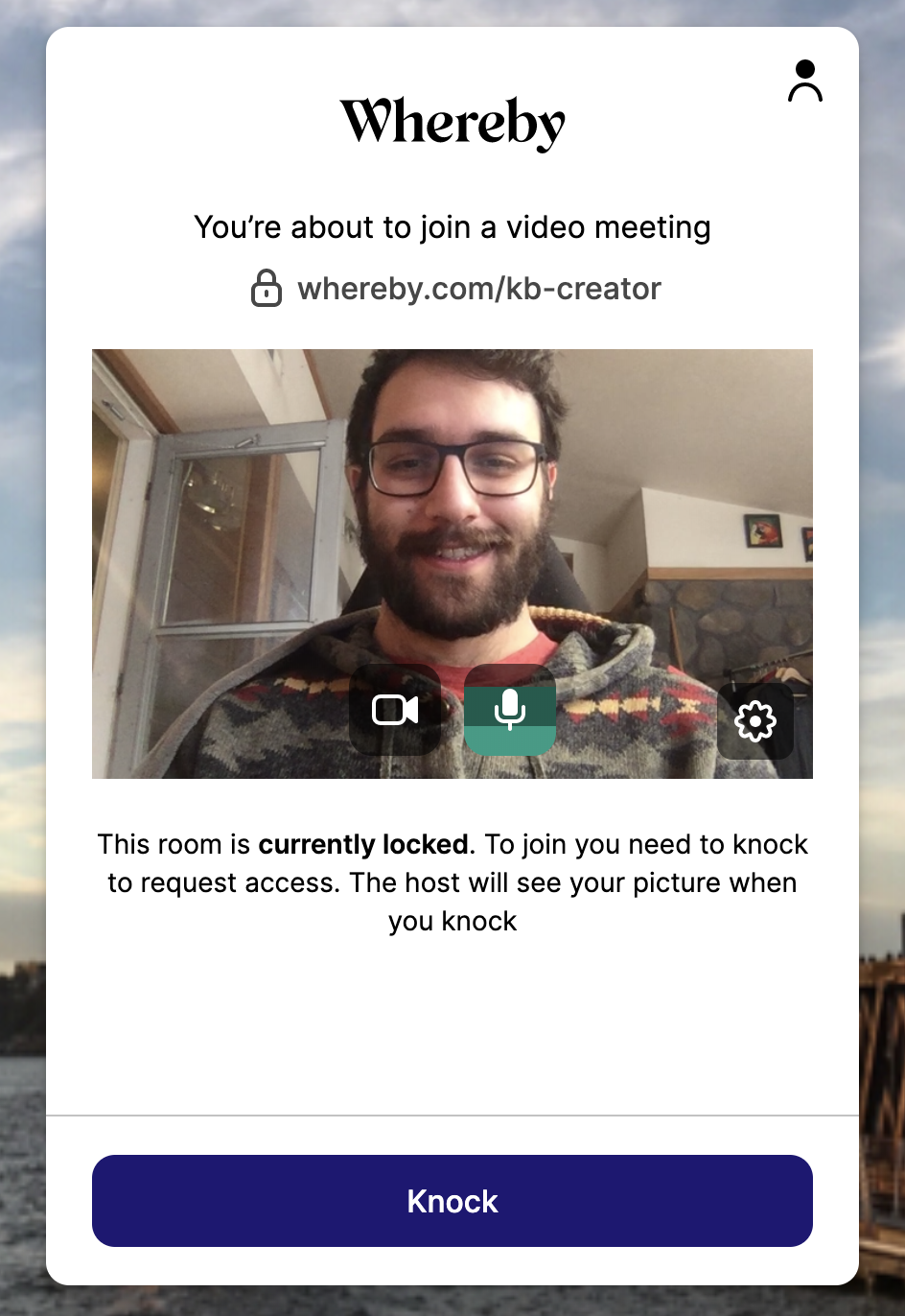
If a user tries to enter your room when it's Locked, they'll be taken to your Knock Page. This lets the user know that the room can't be entered without permission, and gives the user the option to Knock to be let in.
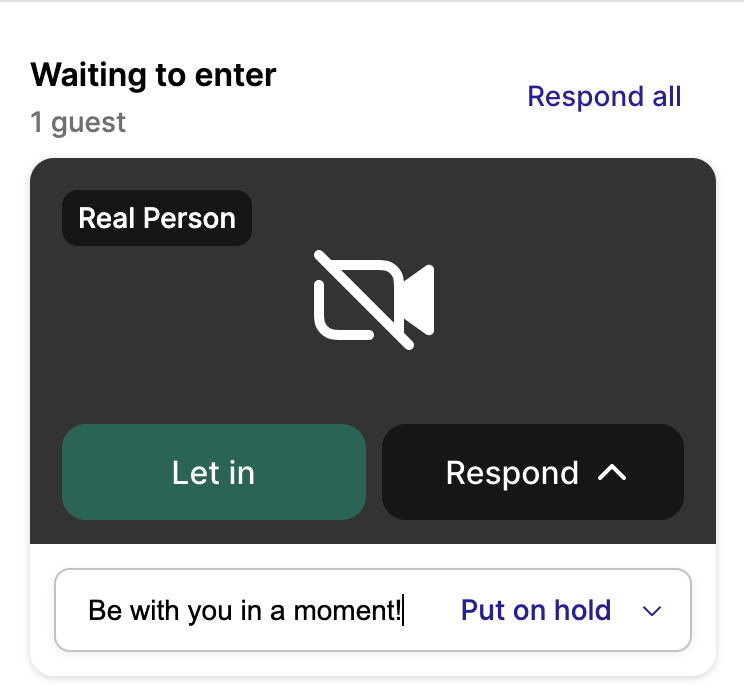
When a user Knocks, the Room Owner will get a notification that someone would like to join the meeting. A Knocking User can either be Let In straight away, or you can click on the Respond button to Reject the user or put them on Hold temporarily. When placing a user on hold, you can even send them a custom message!
iOS
Lock or Unlock the Room
On iOS you can Lock or Unlock your room by clicking on the gear icon in the top right corner, and then moving the Lock switch to change the state.
Let in Knocking Users
If you're on the go, you can still Let in Knocking users from your iOS device. When someone Knocks, you get a notification similar to the one on your computer.
You can tap the Let in option to allow the user to join straight away, or tap 'See who' to see an image of the user trying to join.
From here, you can tap Put on hold if you aren't quite ready for the user to join, or Let in if you're ready for them. If you don't recognize the person at all, tap Reject.
Android
Lock or Unlock the Room
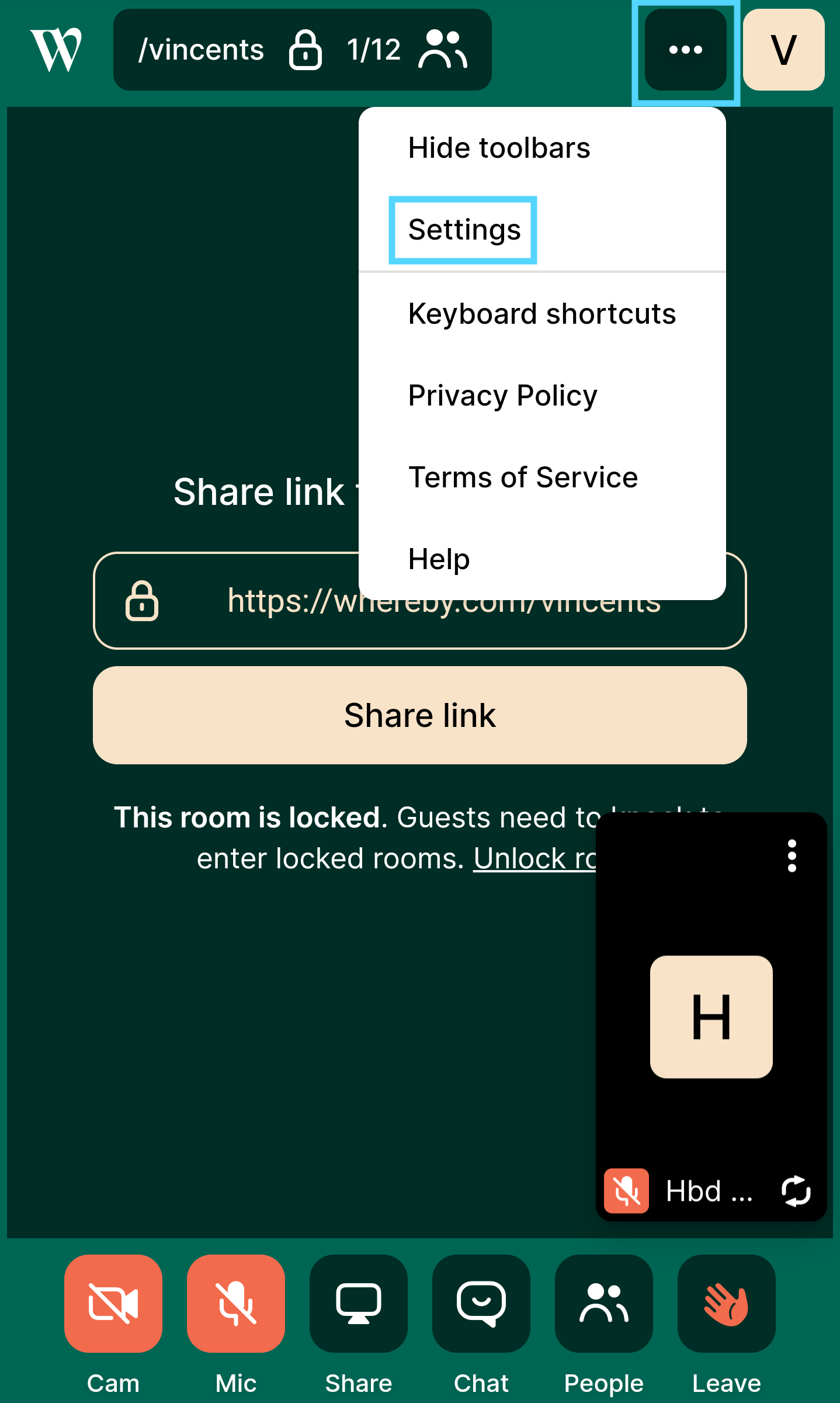
On Android you can Lock or Unlock your room by clicking on the three horizontal dots in the top right corner, and then choosing Room.
Let in Knocking Users
If you're on the go, you can still let people into your room from your Android device with the instructions below.
When someone Knocks, you'll see a notification show up, with the name of the person requesting to join.
Tap on the "See who" to see a picture of the person who's Knocking.
You can tap on Let In to allow the person to join the room, or tap on the Respond option to put the user on Hold or Reject them. The user will get a notification with more information if you choose one of the Respond options.