
Manage Profile Details
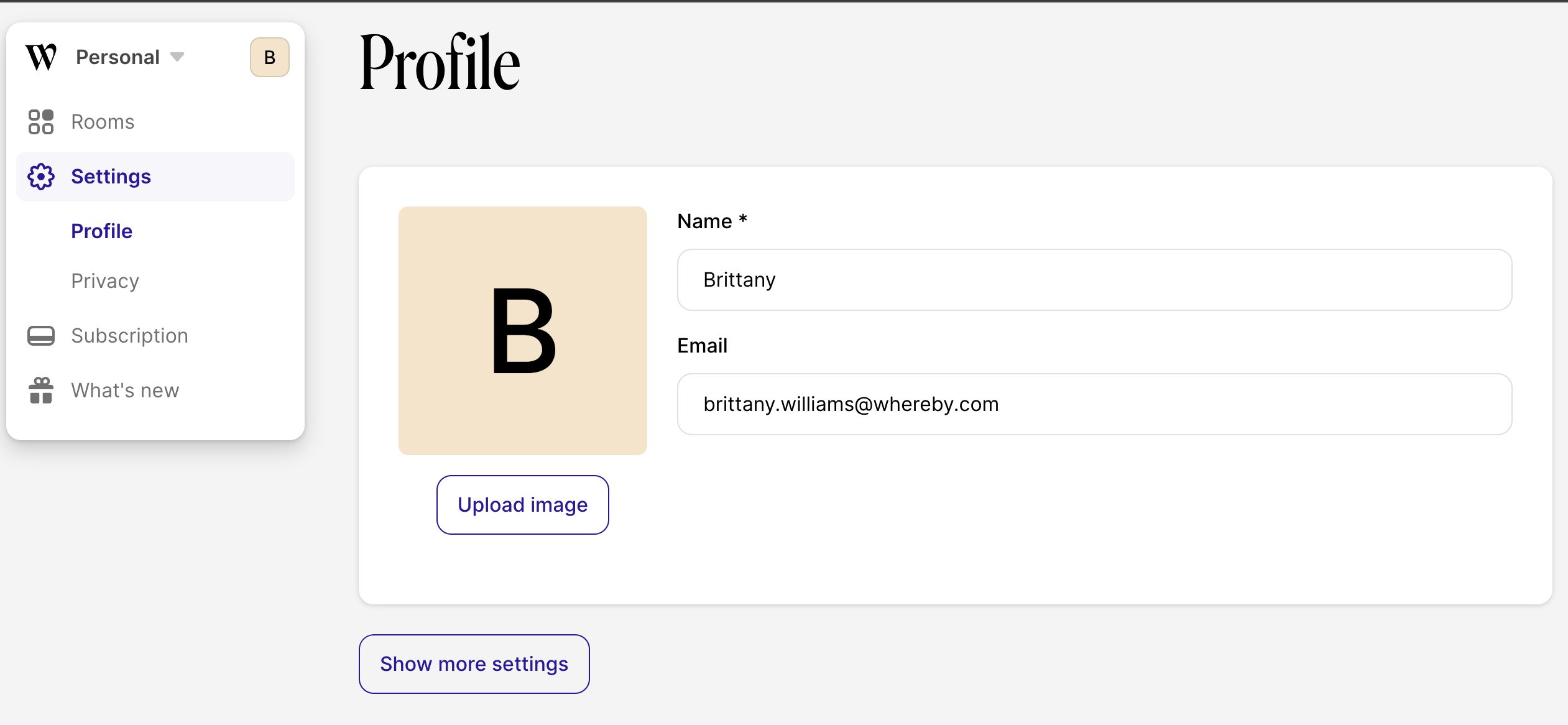
By navigating to the Profile section of your account's Settings page, you can change your profile picture, display name, or email address.
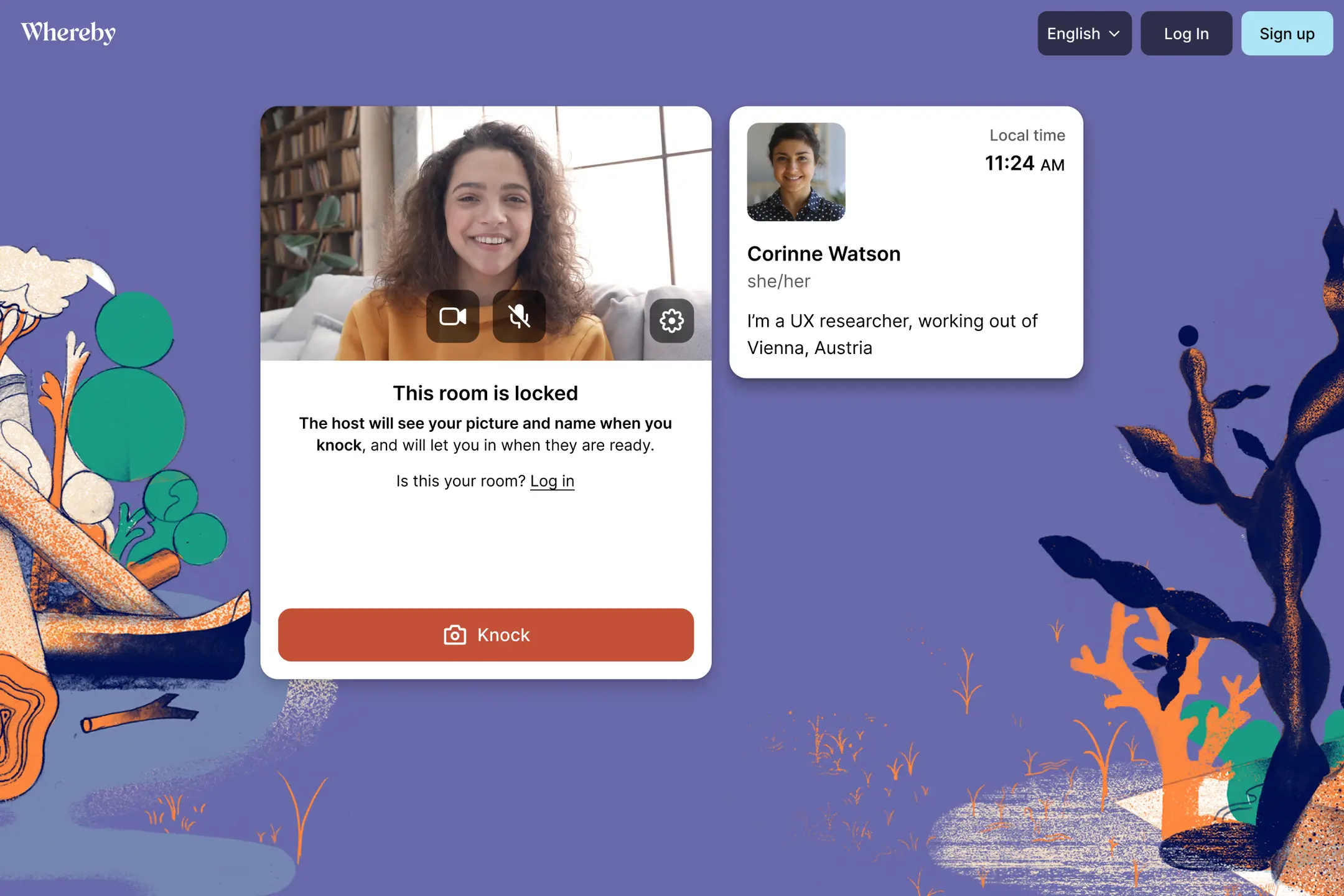
Business customers can also add detailed Waiting Room information, which their guests will see when they knock.
Note
It's not possible to change the email address to one that's already in use for another Whereby account. You'll need to delete the account with the desired email address first before you can update to it.
Desktop
From your Whereby dashboard, go to Settings > Profile. If you have multiple Whereby accounts, use the Account Picker to navigate to the desired account.
Here you can upload a profile picture and change your display name. If you are a Business customer, you can also add information such as pronouns, timezone, and a short bio.
To change the email address you use to log in, please update the email address field. A confirmation code will be sent to the new email address, so you can confirm the change.
iOS
From the app, it's only possible to update your profile picture. For updating your email address or display name, you'll need to sign in via the mobile browser.
Log in to your account in the app and tap on the profile icon in the lower-right corner.
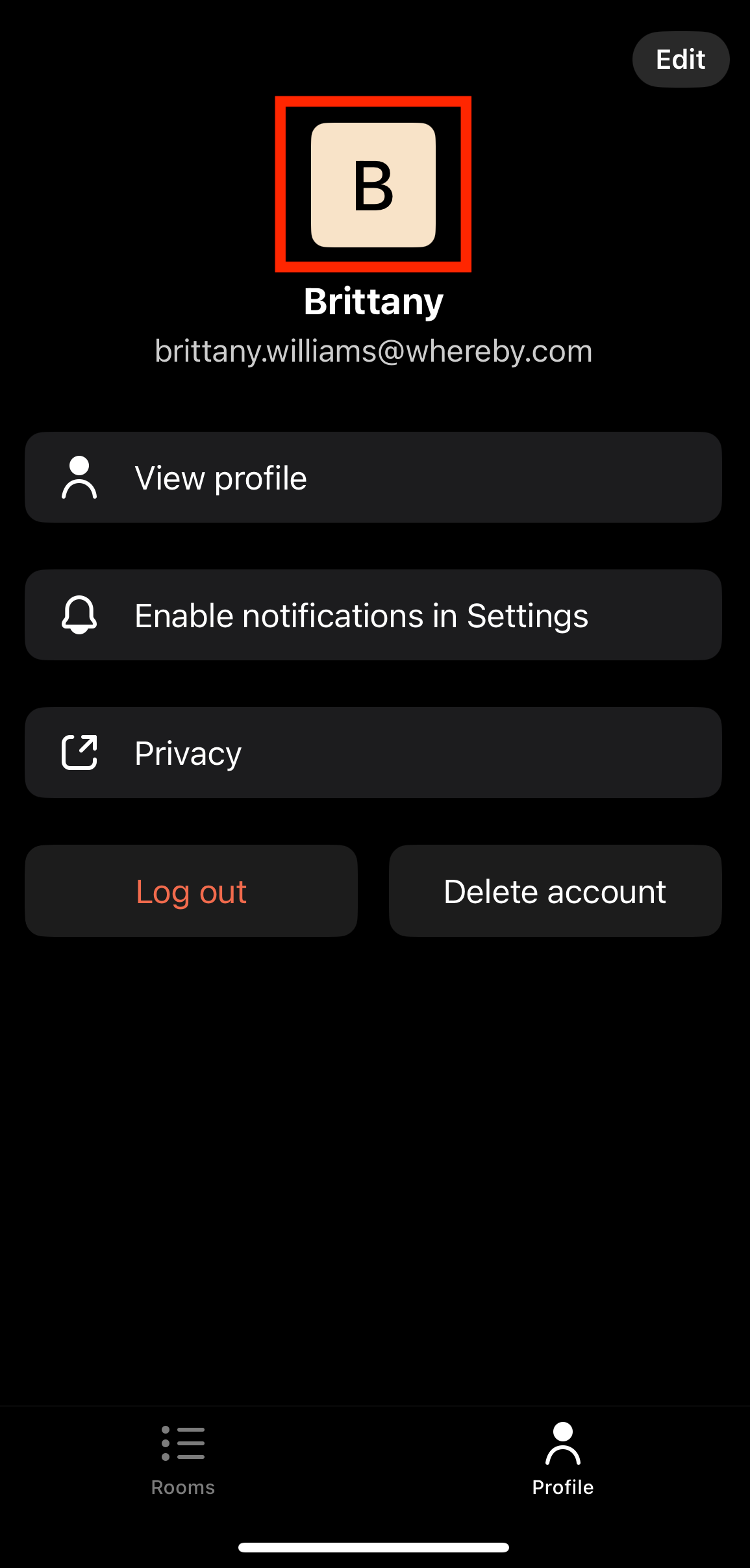
Tap the square above your name.
From here, you can choose to either upload a photo from your device, or take a new picture with your phone's camera!
Confirm that your photo looks like you want it to, and you'll see your profile picture reload.
Android
You can update your profile on your Android device from the Dashboard at any time while you're logged in. These instructions are the same for all Android devices.
Log in to your account and tap on the menu in the top right corner of the screen. Then tap profile.
Here you can upload a profile picture and change your display name. If you are a Business customer, you can also add information such as pronouns, timezone, and a short bio.
To change the email address you use to log in, please update the email address field. A confirmation code will be sent to the new email address so you can confirm the change.