
Background Effects
Note
Available on all plans
In the iOS app, it's possible to enable Portrait mode, which will apply a Light blur effect, and Studio Light mode, which will light up yourself and darken the background
The Effects section lets you blur your background, select one of our virtual background images, or alternatively you can upload a custom background image.
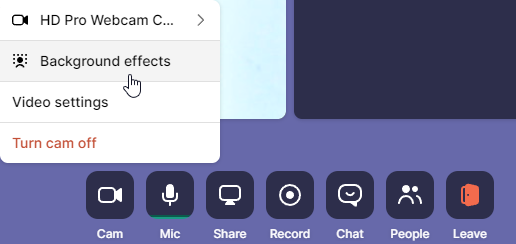
This feature can be accessed directly from the Settings menu or when hovering over the camera icon from the toolbar below:
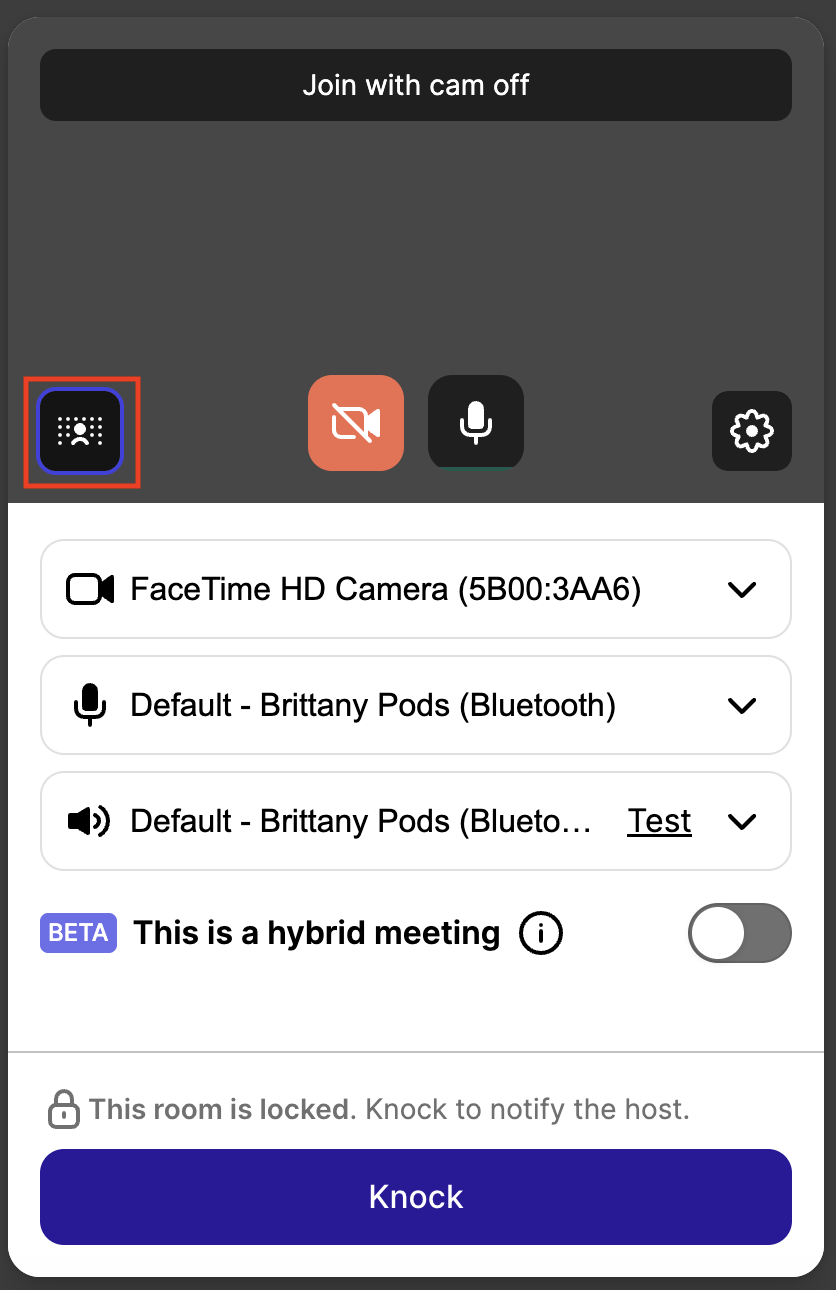
Or in the waiting room before you enter the call:
Selecting either option will open the Effects section of the Settings menu with the background options we offer.
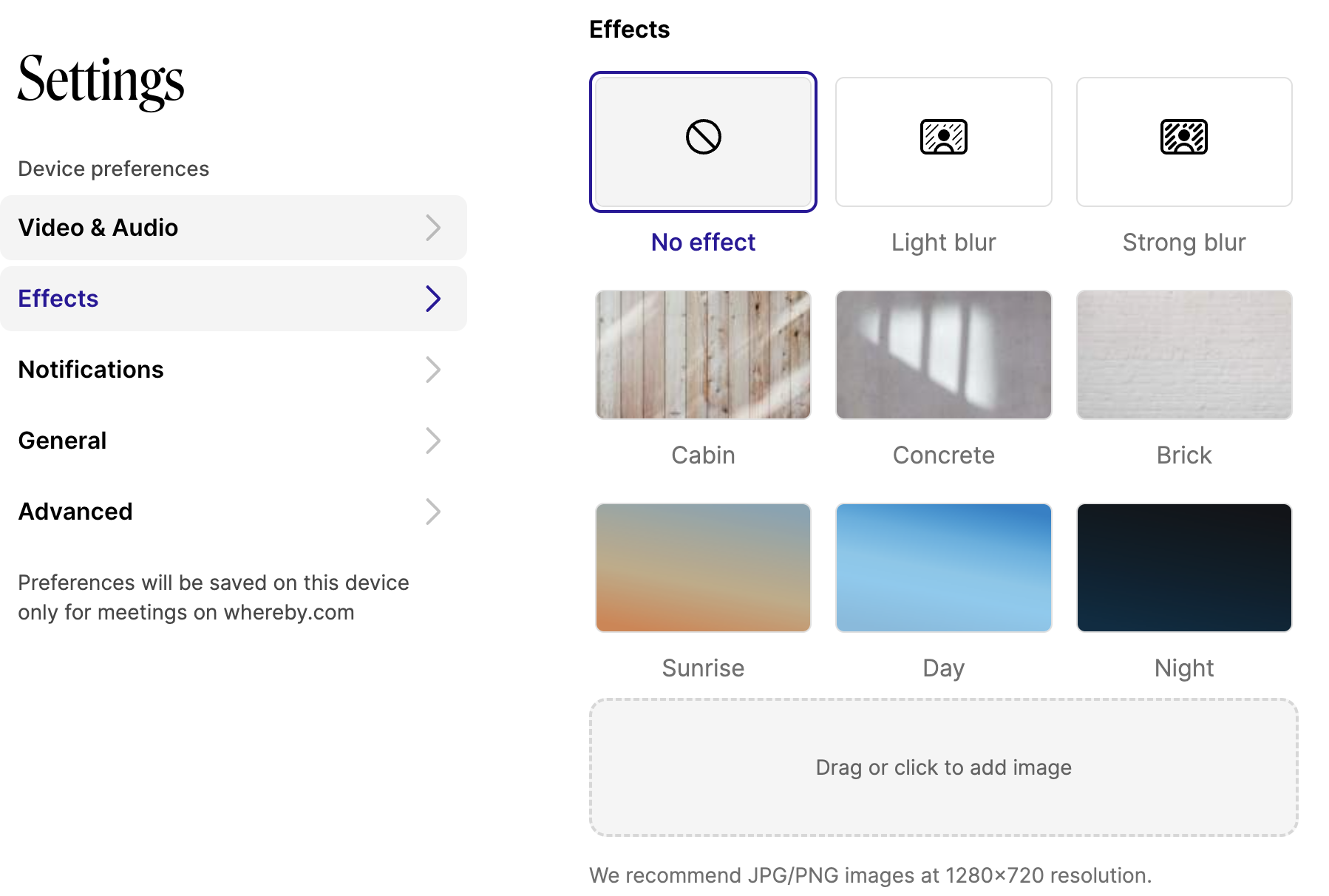
Make sure to select Apply and the effect you've selected will be added to your current camera feed. You can then close the Settings menu and enjoy your meeting!
Custom Virtual Backgrounds
You can upload your own custom image as the background for your video feed! Follow the instructions above to access the Effects section of the Settings. Then drag and drop, or click to upload an image of your choosing. We recommend JPG/PNG images at 1280x720 resolution.
Troubleshooting Effects
If you're having issues getting background effects to work, here are a few steps to try:
Try another browser or device
Try clearing your cache and cookies
For custom images, try resizing to our recommended sizes or convert the file to a JPG/PNG