
Change Room Size
Who can use this guide?
Room Owners and Business Users
All plans
Whereby offers rooms of different sizes to suit different needs:
Size | Capacity | Available in | # of video feeds | Connection |
Small | 2 | Free | 2 | Peer-to-Peer |
Small | 4 | All Plans | 4 | Peer-to-Peer |
Group | 100 | Pro | 12 | Central Server |
Group | 200 | Business | 24 | Central Server |
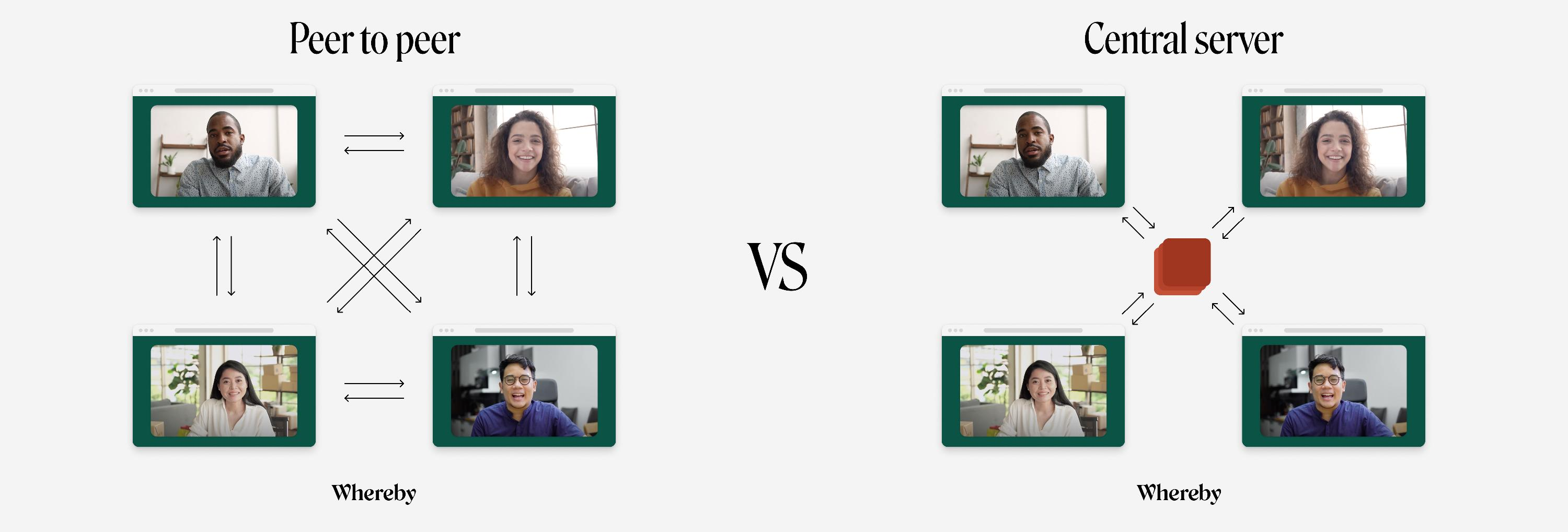
By default, all rooms start off in Small mode and use a peer-to-peer connection to send/receive audio and video streams. In this case, video and audio are then sent directly between the participants in a room and is encrypted (DTLS-SRTP) with client-generated encryption keys. In cases where a user is behind a strict firewall or NAT, video and audio need to be relayed via a TURN server, but end-to-end encryption is still maintained.
Users do also have the option to change to a Group meeting if they wish to prioritize a central server to receive and bundle every participant's video and audio into a single stream. This dramatically reduces the amount of bandwidth needed for each connection, but note that each additional user will still increase the demand on your network. With this infrastructure, streams will always be encrypted (DTLS-SRTP) in transit, but will be decrypted and re-encrypted when passing through the video routers.
Note
Group mode can hold 100 or 200 participants, with 12 or 24 being on video at the same time depending on your plan.
We call this being “on stage.” It is possible to rotate which participants are on video; if one person turns their camera off, another can turn theirs on.
This mode is great for company-wide meetings, classes, and presentations with many listeners and a few speakers. Audio-only participants will see and hear everything in the meeting, and can unmute their microphones to talk.
Desktop
Click on the room name in the upper-left corner.

Use the dropdown menu to set the room size.
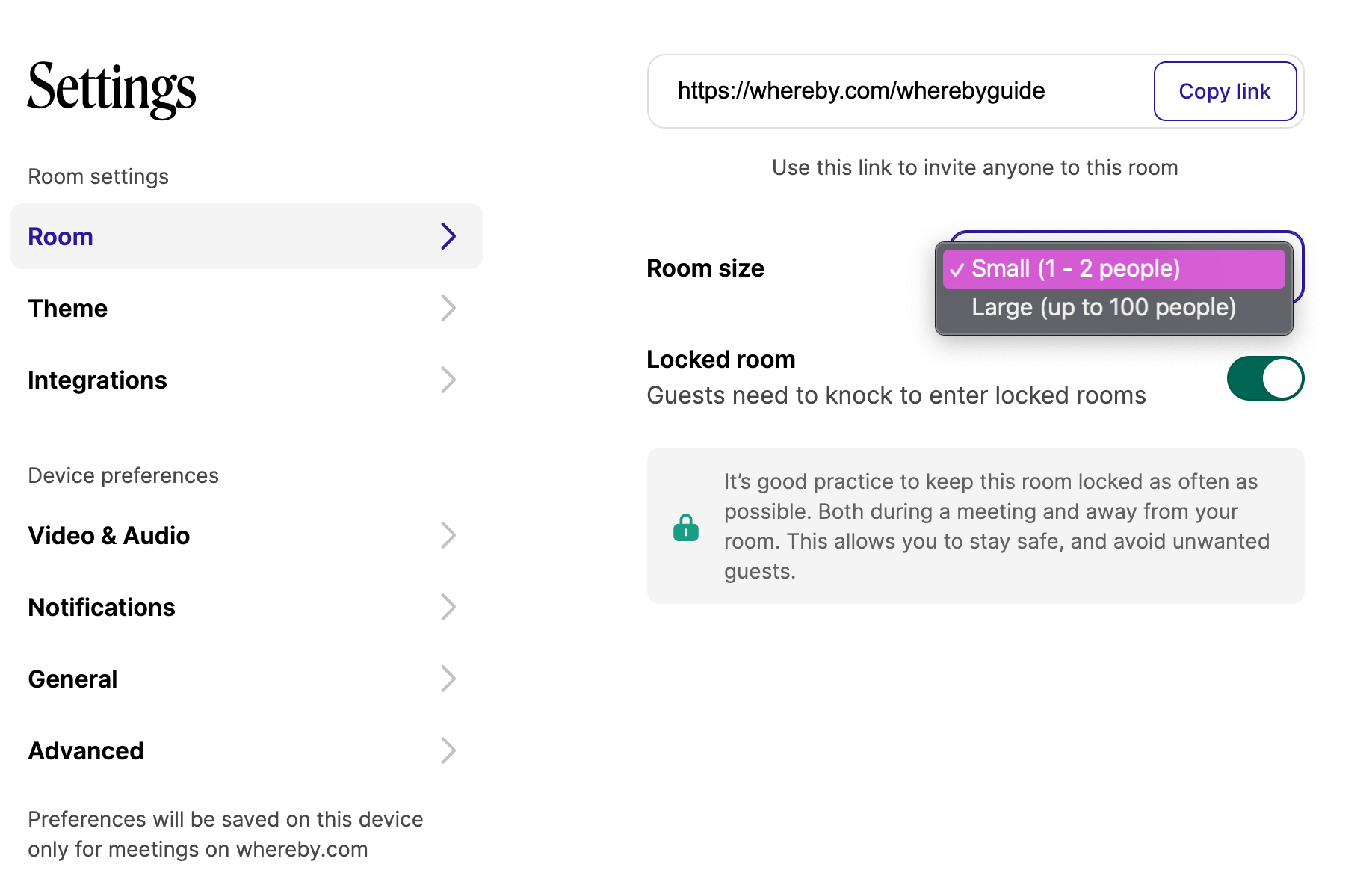
After selecting a size, the room will refresh for all participants so the changes can take effect.
iOS
While in your room in the app, tap on the settings gear in the upper-right corner.

In the Room Settings, tap on Switch to a large room or small room (depending on the current size of your room).
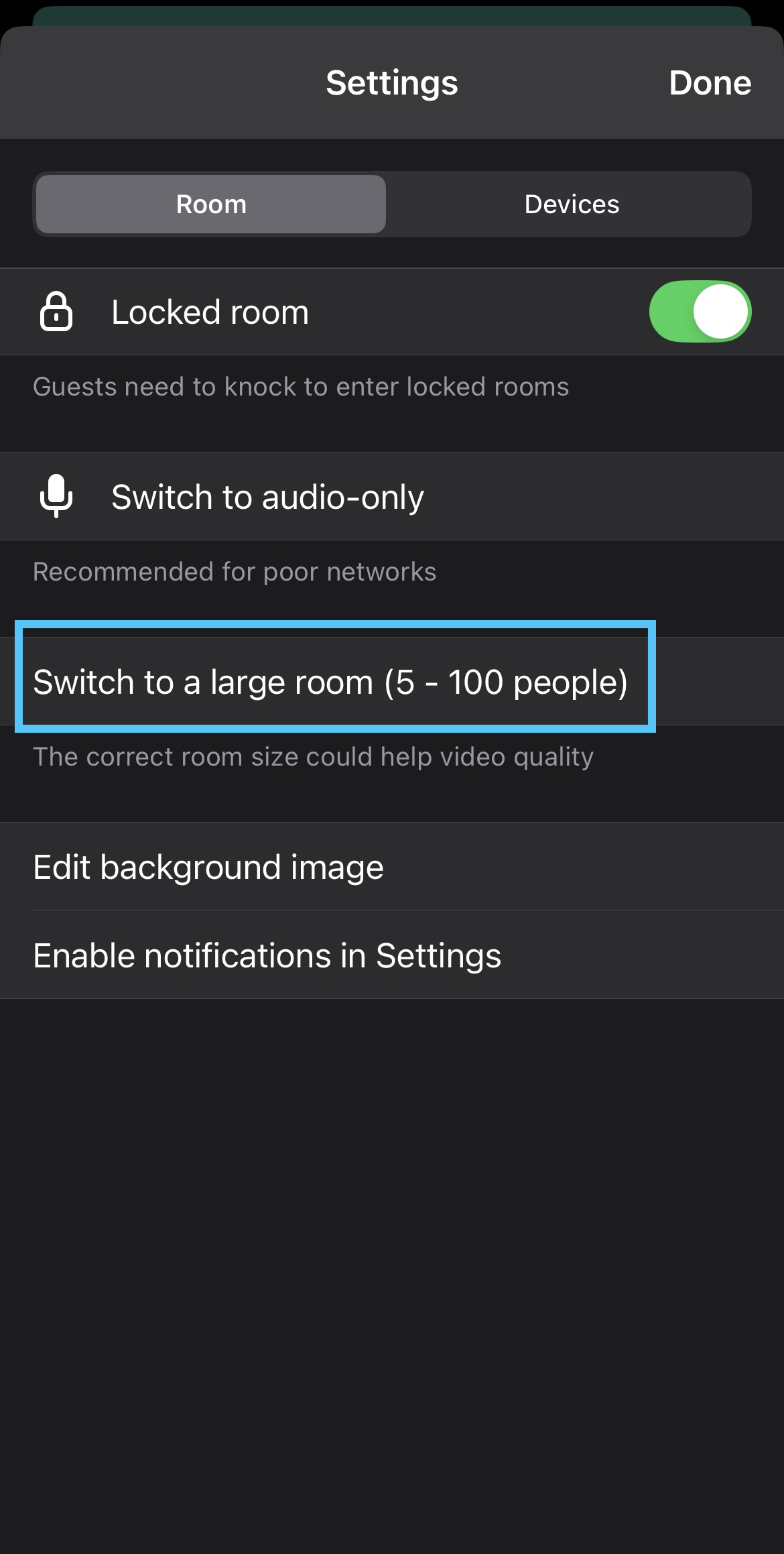
After selecting a size, the room will refresh for all participants so the changes can take effect.
Android
Tap on the room name in the upper-left corner.
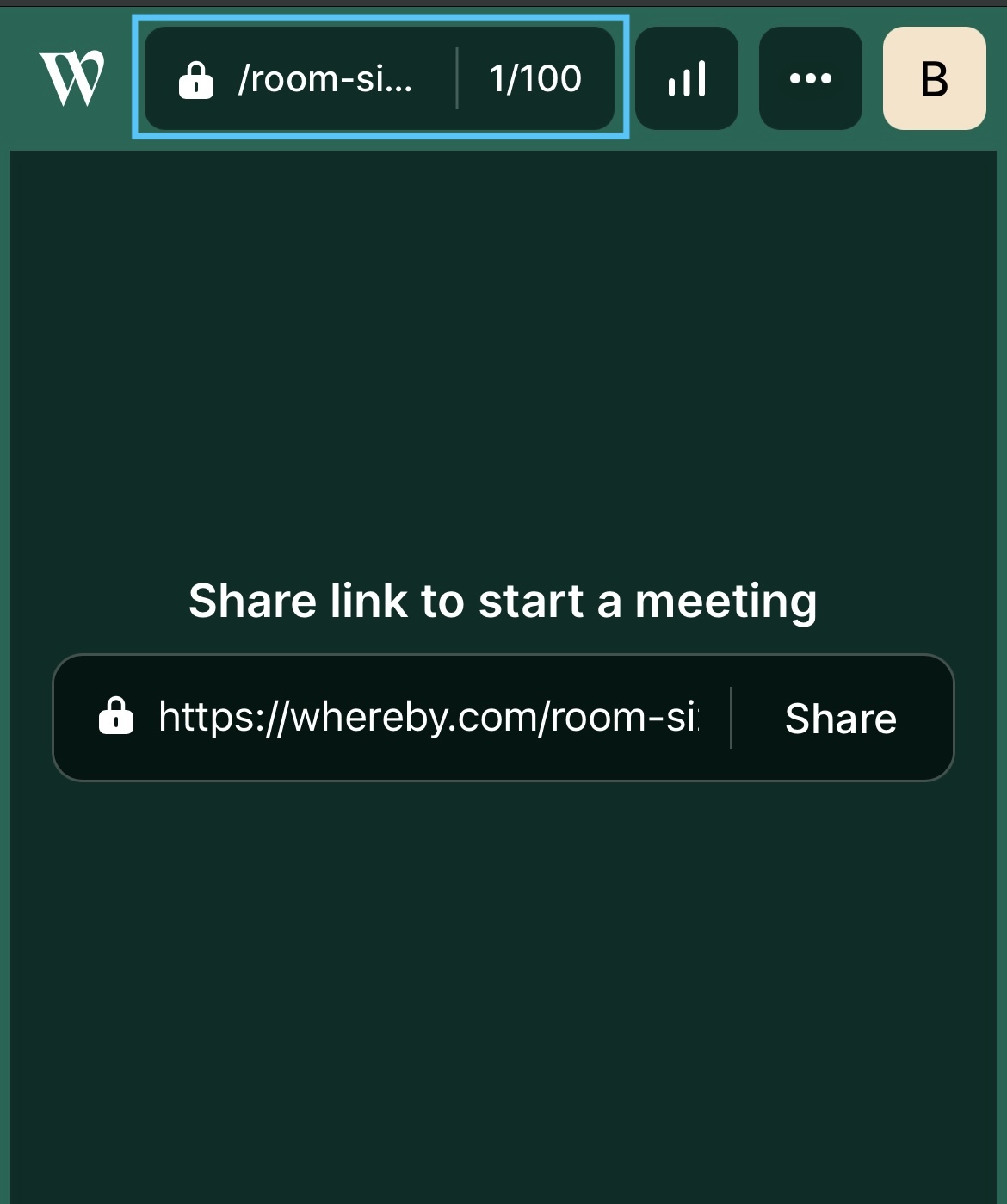
Use the dropdown menu to set the room size.
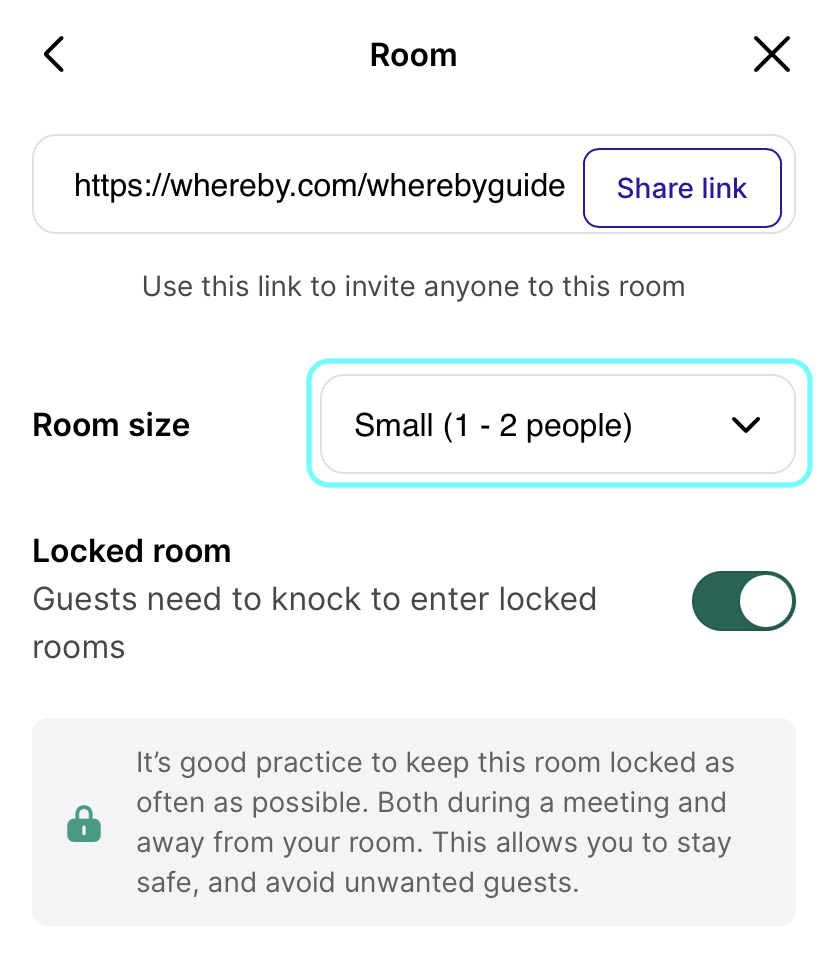
After selecting a size, the room will refresh for all participants so the changes can take effect.