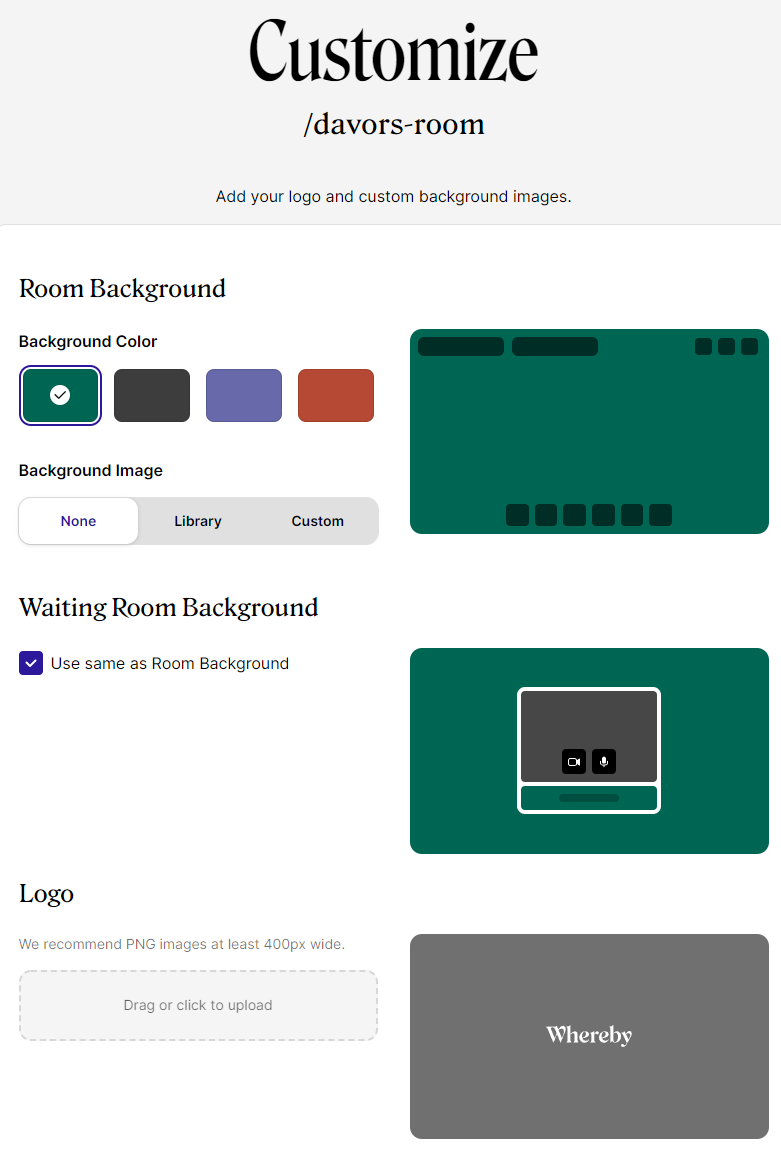
Customize Paid Room Branding
Who can use this guide?
Business and Pro
Admins and Users
With our paid plans, you can choose to have consistent branding across all of the rooms in your organization, or you can customize individual rooms to give them your own personal flair! Depending on your user role in the account, you'll have one of the following permissions:
Admins are able to set company-wide branding via the Branding tab in the account and are also able to set individual branding for their Personal Room.
Users are able to set individual branding on their Personal Rooms.
Note: If you're an Administrator on a Business plan you can further customize the branding with Custom Color Themes.
Customize all rooms
Start on the Dashboard and click on Settings > Branding in the sidebar. Select from the dropdown menu if you want to customize all rooms or a single room.
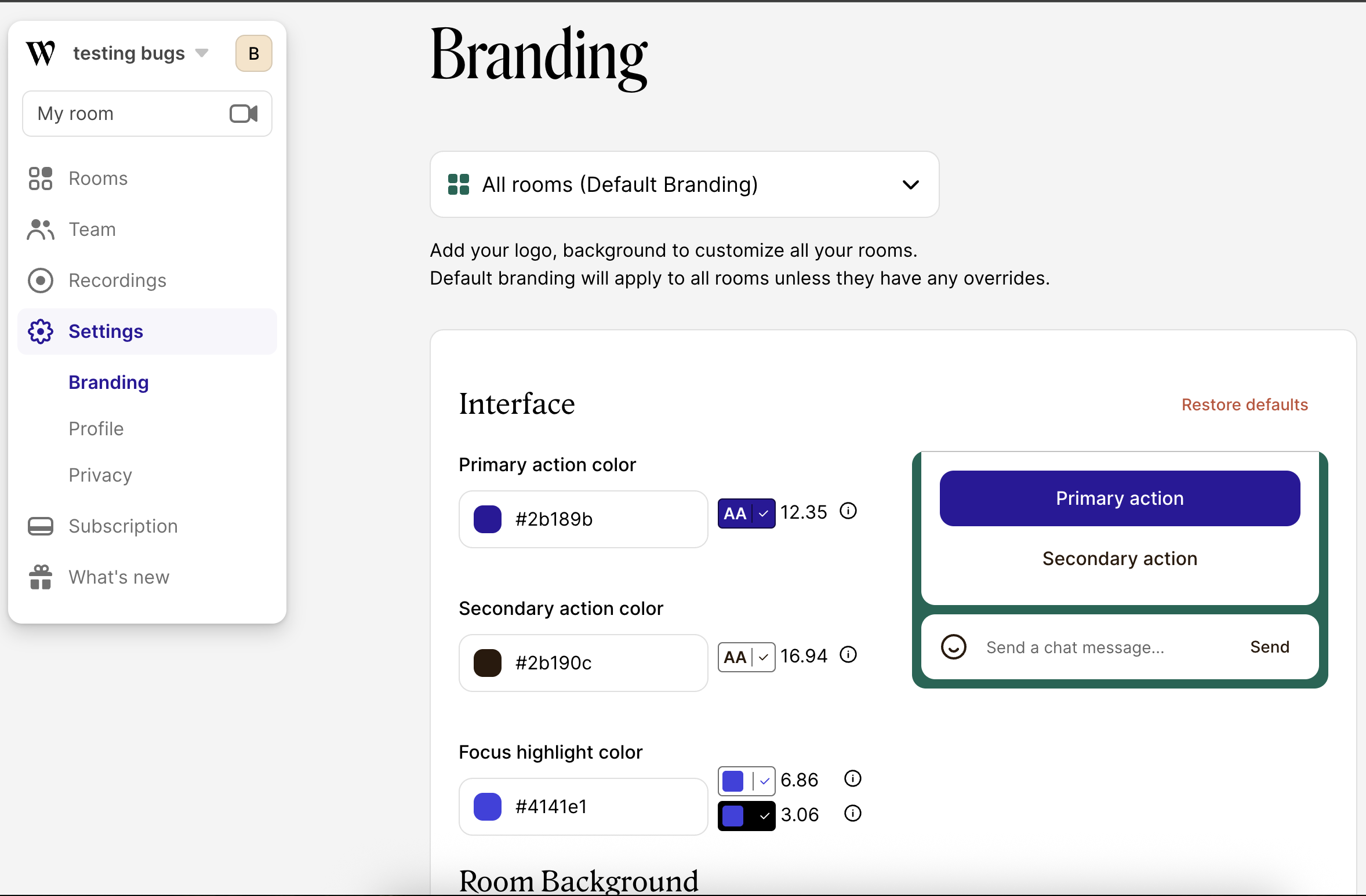
From there you can see the current customizations that are in place and make changes as necessary.
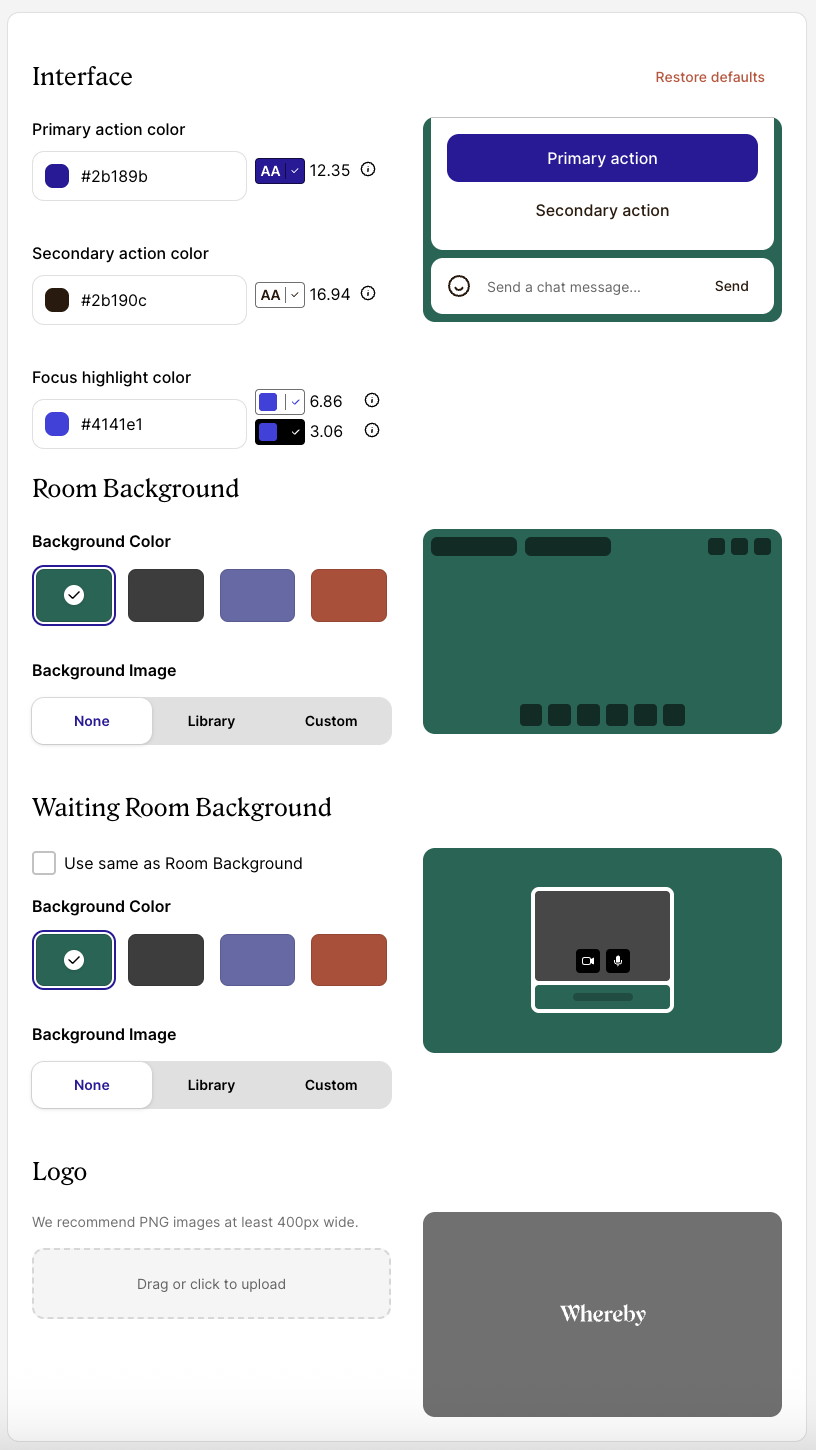
Click on the Drag or click to upload box to upload images for each option, or click Remove to go back to the default Whereby settings. These changes will be applied immediately.
Customize individual rooms
You can use the dropdown on the Branding page to select individual rooms to brand, but you can also update the branding for an individual room from the Rooms section in the sidebar.
Either start on the Dashboard in the Rooms section, hover over the room name that you want to customize, then click the three dots next to it...:

...Or you can navigate to the Branding tab of the Settings section of your Dashboard and choose the room you want to customize:
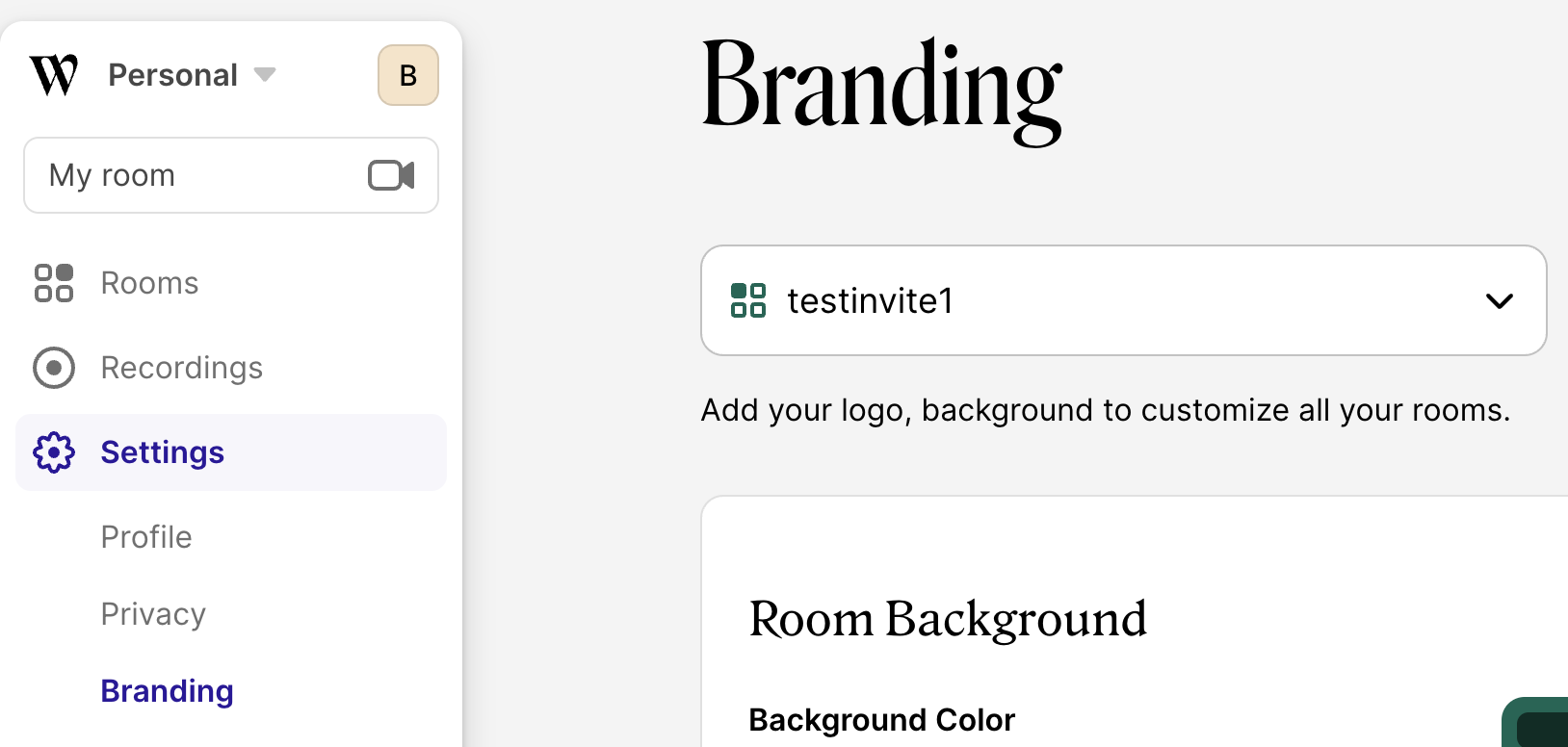
From this page, you can set the individual customization for your room: