
Accept an Invite to your Organization
Who can use this guide?
Users invited to a Paid Account
Organization-based accounts (Business and some legacy Pro plans)
If your company has recently starting Whereby, and you got an invite to the subdomain, this guide will walk you through creating your user.
Accept an Invite & Create an Account
Note
It's important to go through the invite email you receive and not try to sign up for an account separately on the site, as this will create a Free account not associated with your company's plan.
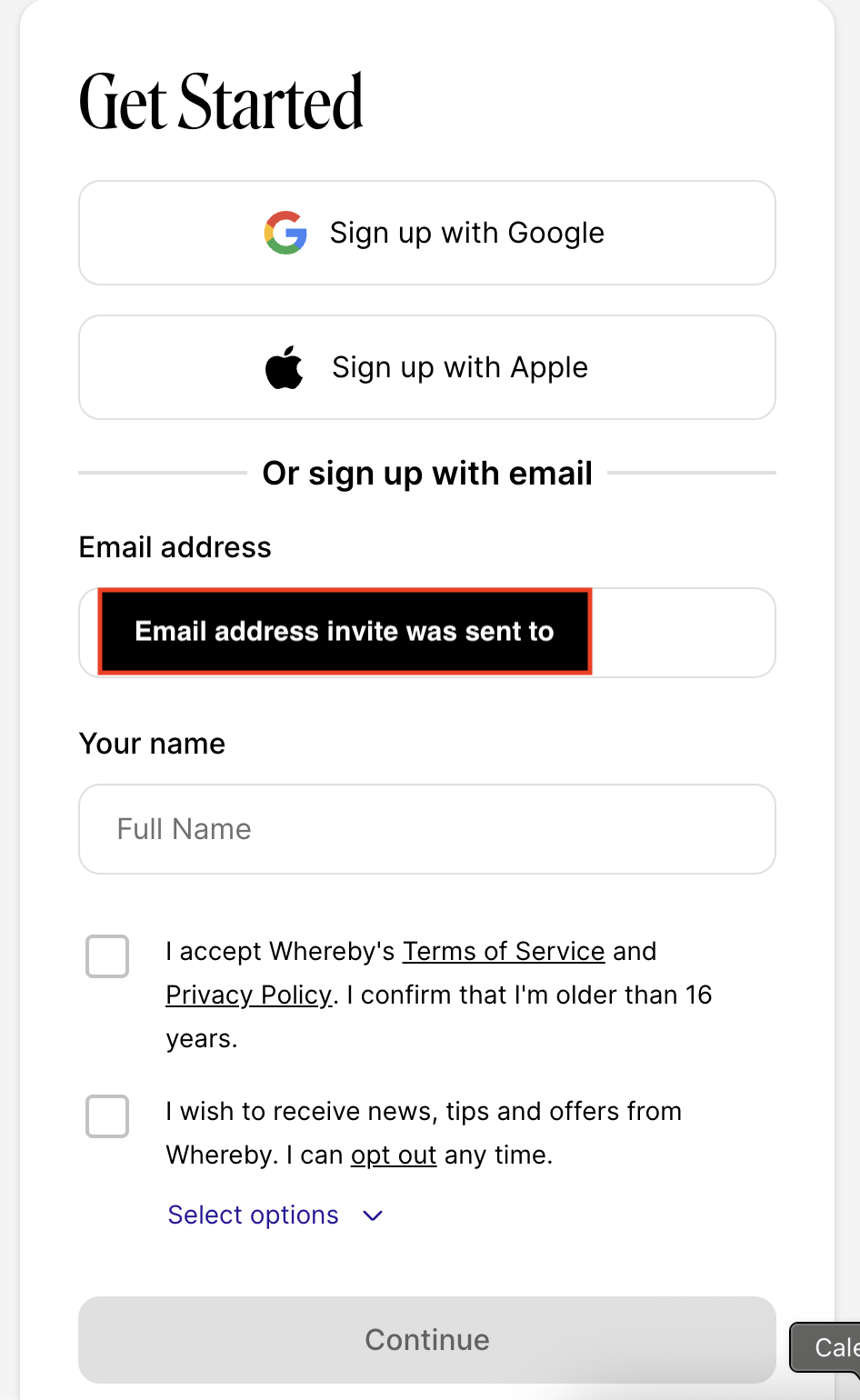
In your email inbox, click the Accept invitation button to go to the account creation page, where you can choose your Display Name that will show in a room while you're logged in.
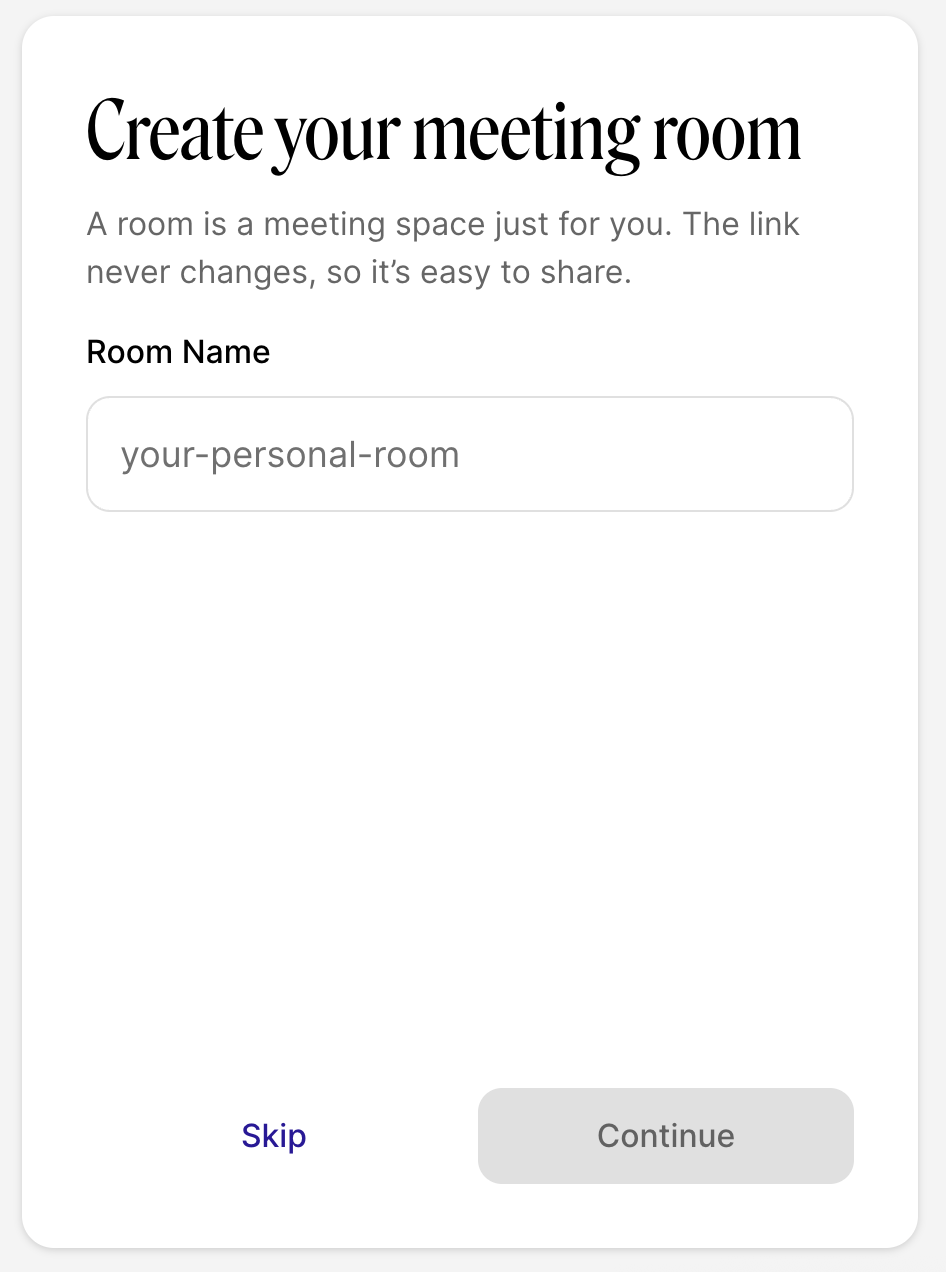
After creating your name, you'll be asked to create your own personal meeting room. This will be yours to manage and host meetings in. Read more about a host's privileges. You can skip this step for now, if you'd like.
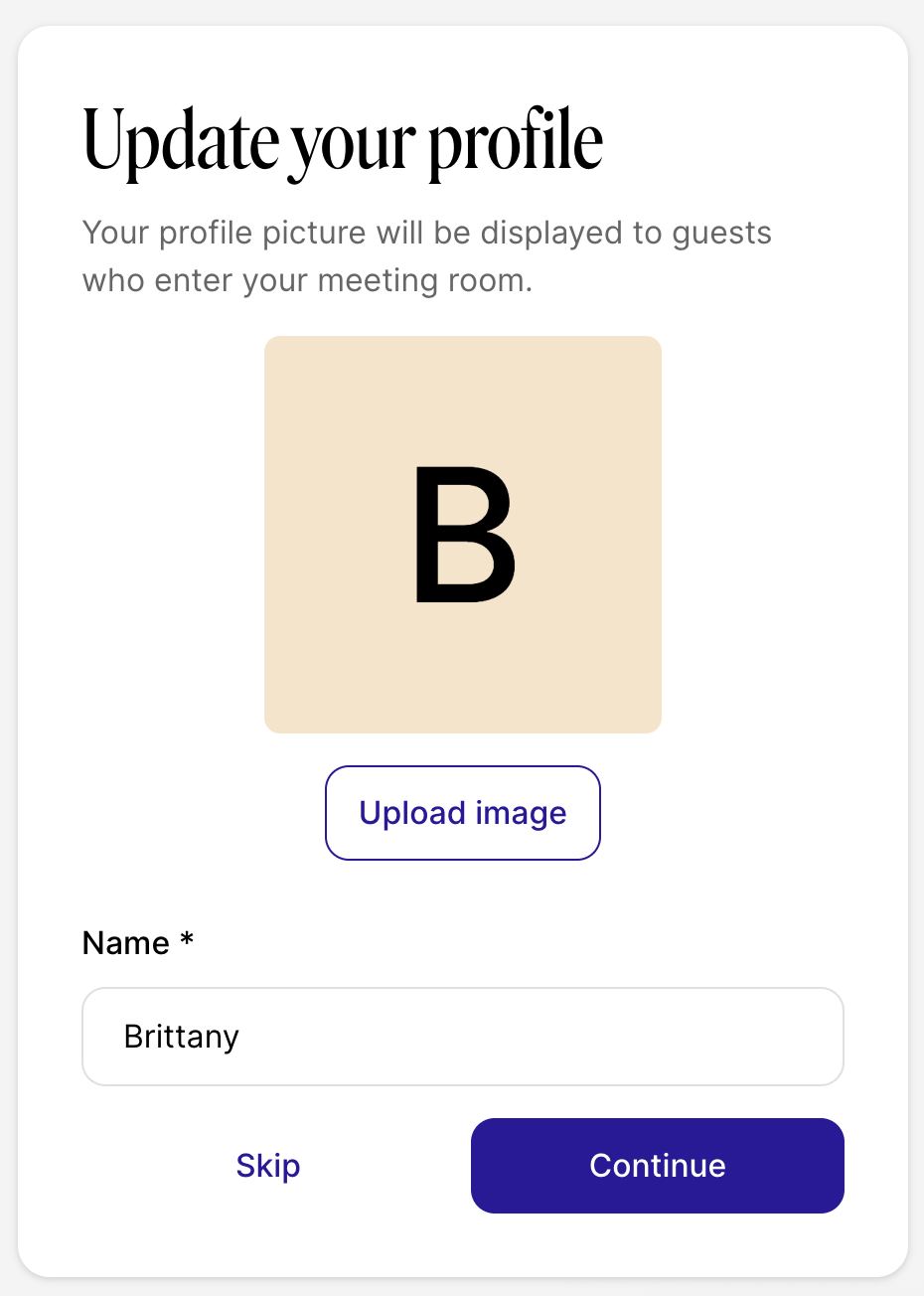
After selecting your personal meeting room, you have the option to upload a profile picture. You can skip this step for now if you'd like and do this later in your profile settings.
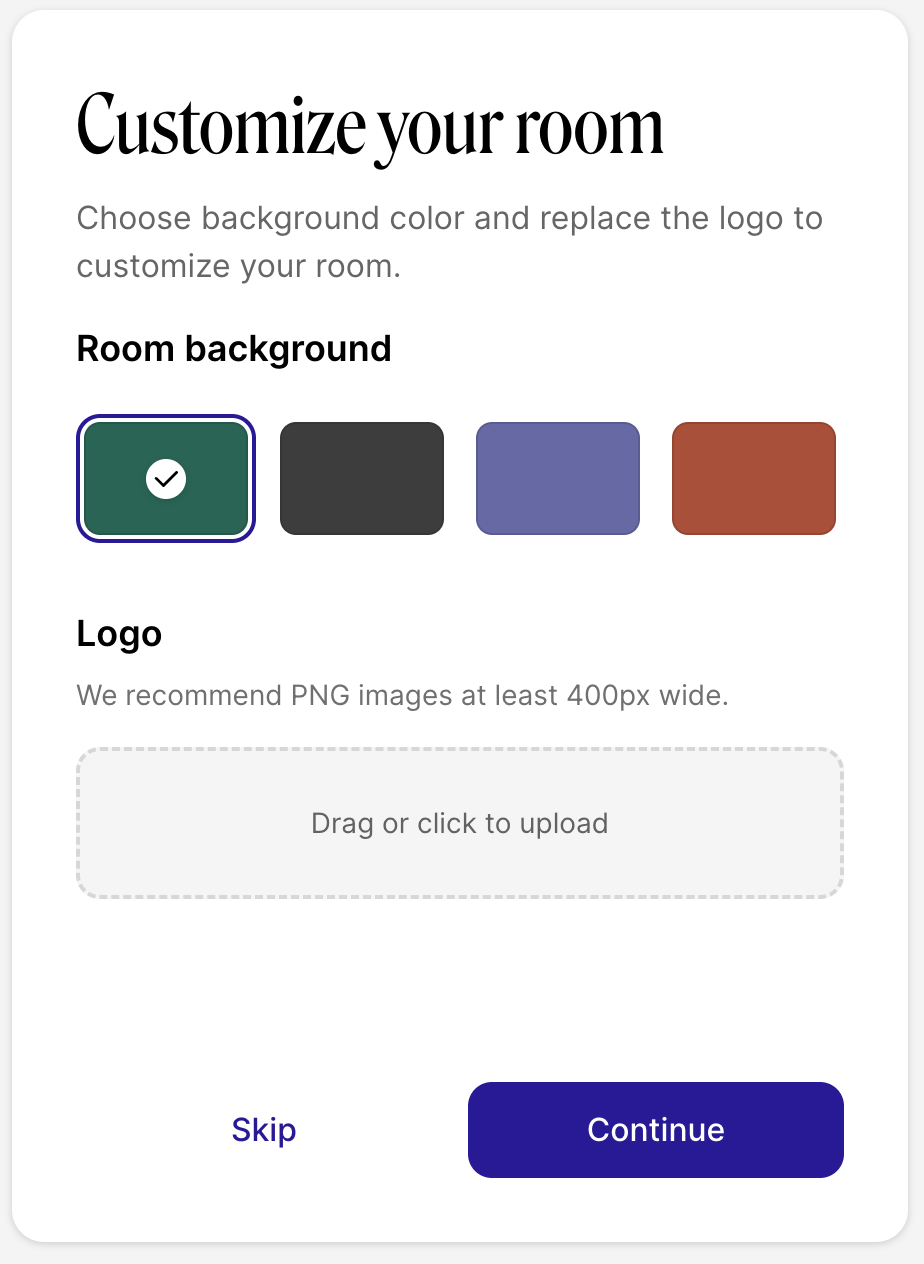
You can choose a background color and upload a logo to customize your room. You can also skip this for now and do this later in your branding settings.
After Creating your room, you'll be taken to your Whereby for Business Dashboard. You can add notifications for your personal room by following the instructions in our Notifications user guide!
Not receiving the invite?
Try the troubleshooting steps: I'm having trouble logging in
We've had customers in the past using Outlook who experienced issues. They eventually found the missing invitations in their quarantine page within Microsoft because their system sorted them out of their inbox. You, or someone from your IT team, will need to "release" them.
Reach out to the person/admin who invited you if you still have issues.