
Flex Rooms
Note
This feature is currently in Beta. As such, its functionality, design and commercial aspects are subject to change at any time. Flex rooms are only available on our current Business plan with User License model.
On our current Business plan, you have the ability to create "Flex rooms". These rooms can be used for meetings without a licensed room owner present and is intended as a way of allowing for single-use rooms. They are perfect for sessions with external participants only.
Each Flex room can be entered using one of two links: a regular room link or a host link. Anyone entering the Flex room with a host link will have access to extended meeting features (start/stop recording, mute certain people, etc.). Learn more about host features.
Quick Answers
How many flex rooms can I create?
There isn't a limit to how many Flex rooms you can create, but keep in mind the rooms are deleted once the end date you set is reached.
How can I delete a Flex room?
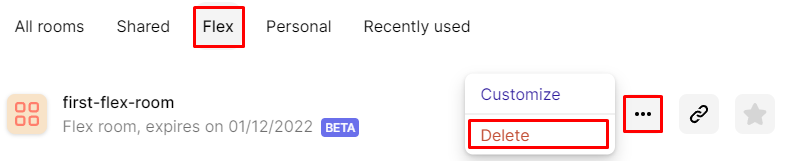
You can delete a Flex room before the set end date just like any other room. To delete it, navigate to the Rooms section of your Dashboard and find the room you'd like to delete. Clicking on the three dots next to the room's name will pop up the option to delete it:
Locked Flex rooms require at least one participant to join the meeting with a host link to allow guests in.
Unlike in Shared rooms, these participants do not need to be licensed users of your Whereby account. Participants who join with a regular room link will have to knock to enter the room. A logged in licensed user can enter the room without needing to knock.Unlocked Flex rooms allow anyone with a regular room link to join the meeting without knocking, and a host/room owner is not required to be there.
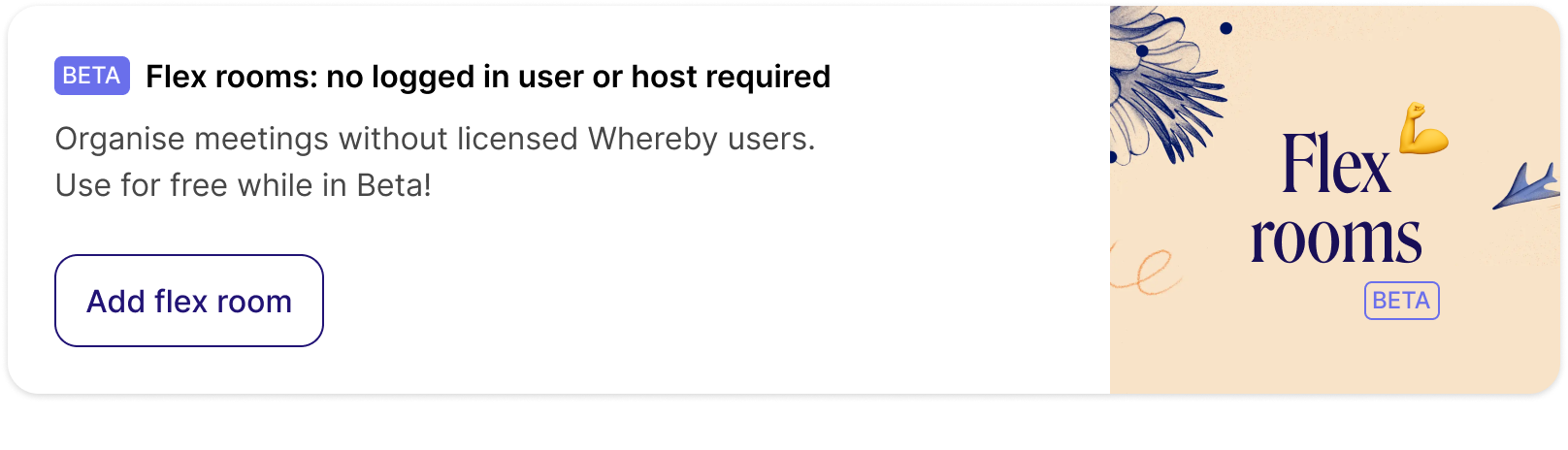
From your organization dashboard, select "Add Flex room" and follow the steps of the room creation wizard.
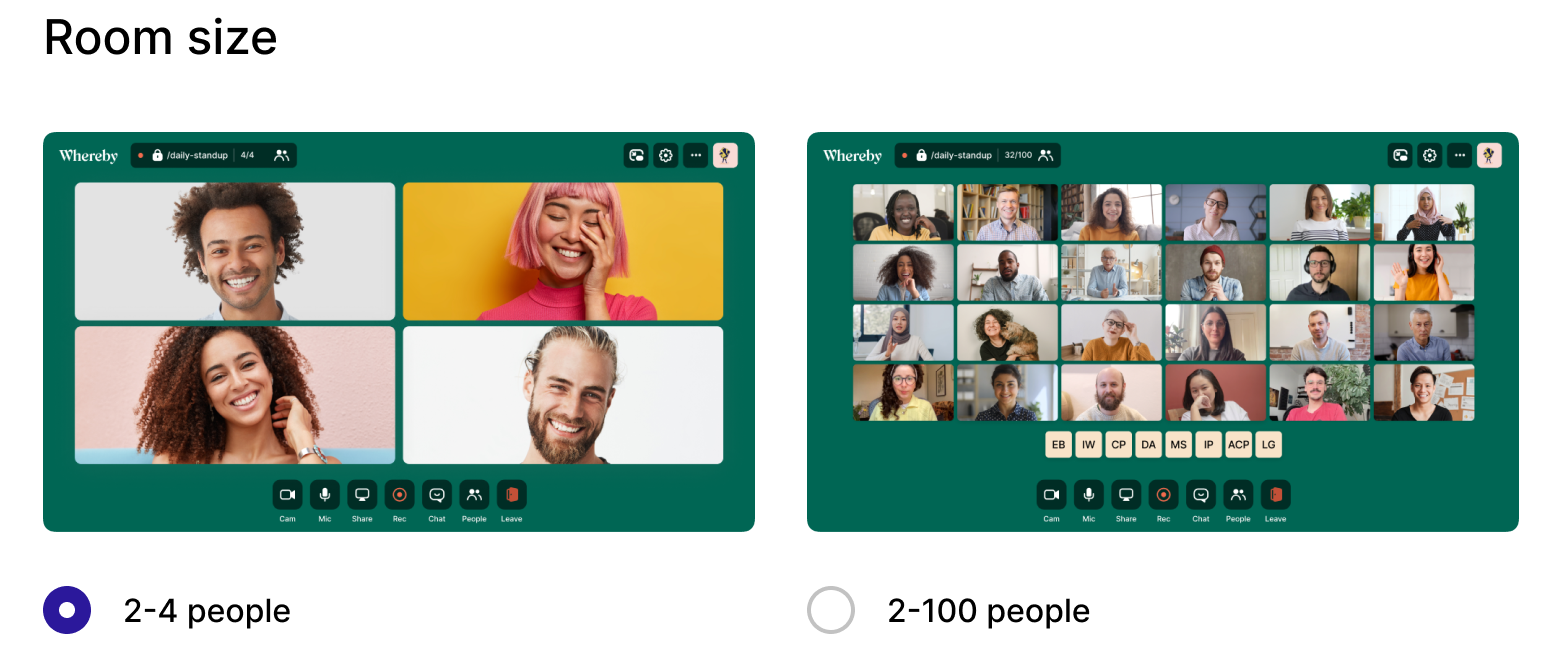
Select the desired room size. This cannot be changed later.
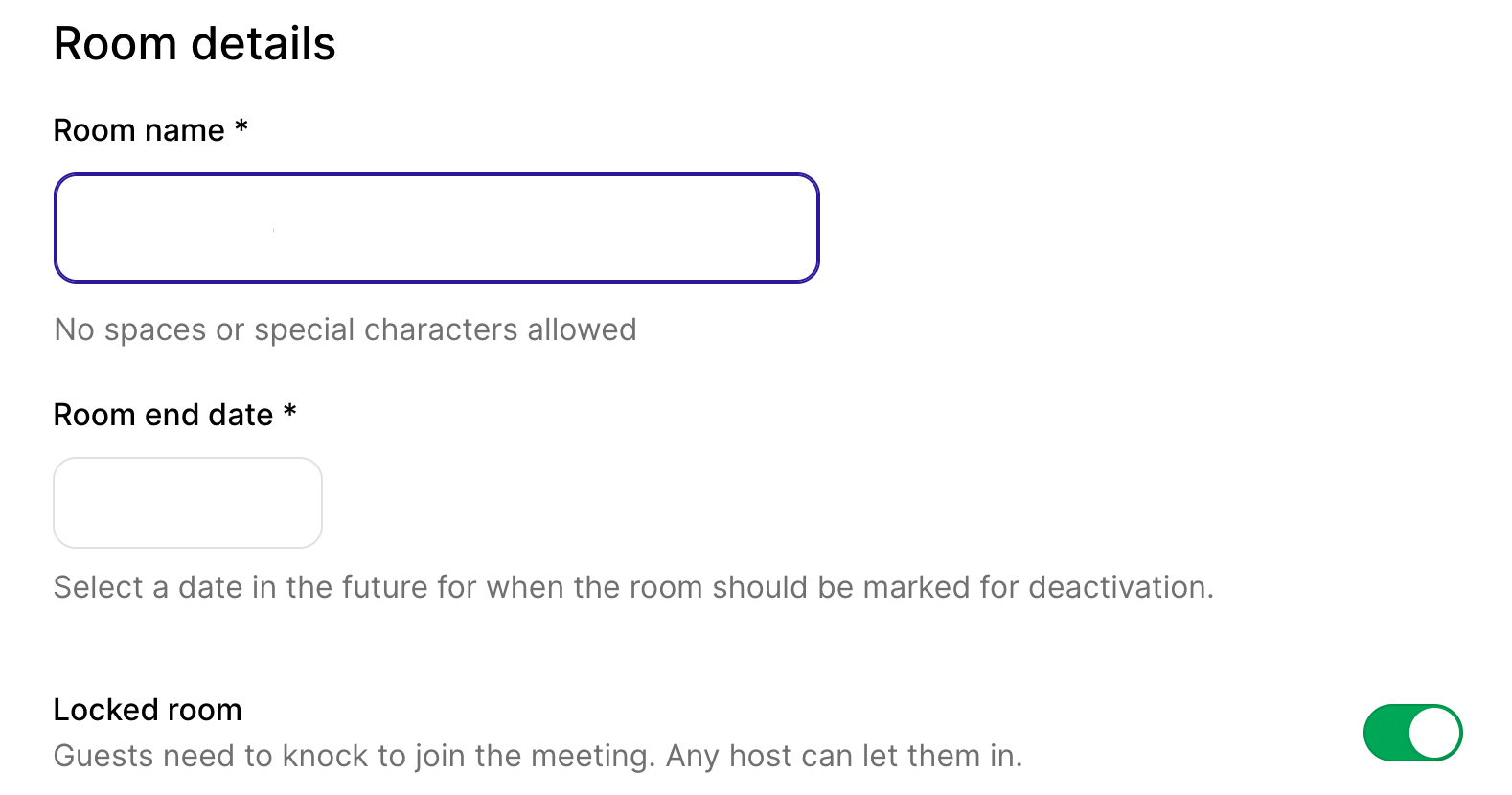
Enter in the room name, room expiry date and select if you'd like it to be locked or unlocked by default.
Share the regular room link with all participants who should enter the room as guests.

Share the host link with any participants who should have access to host features (start/stop recording, mute certain people, etc.) and who will let guests into the locked room.
