
How to Record
Who can use this guide?
Room Hosts
Pro and Business
Desktop and Laptop (currently not available on mobile devices)
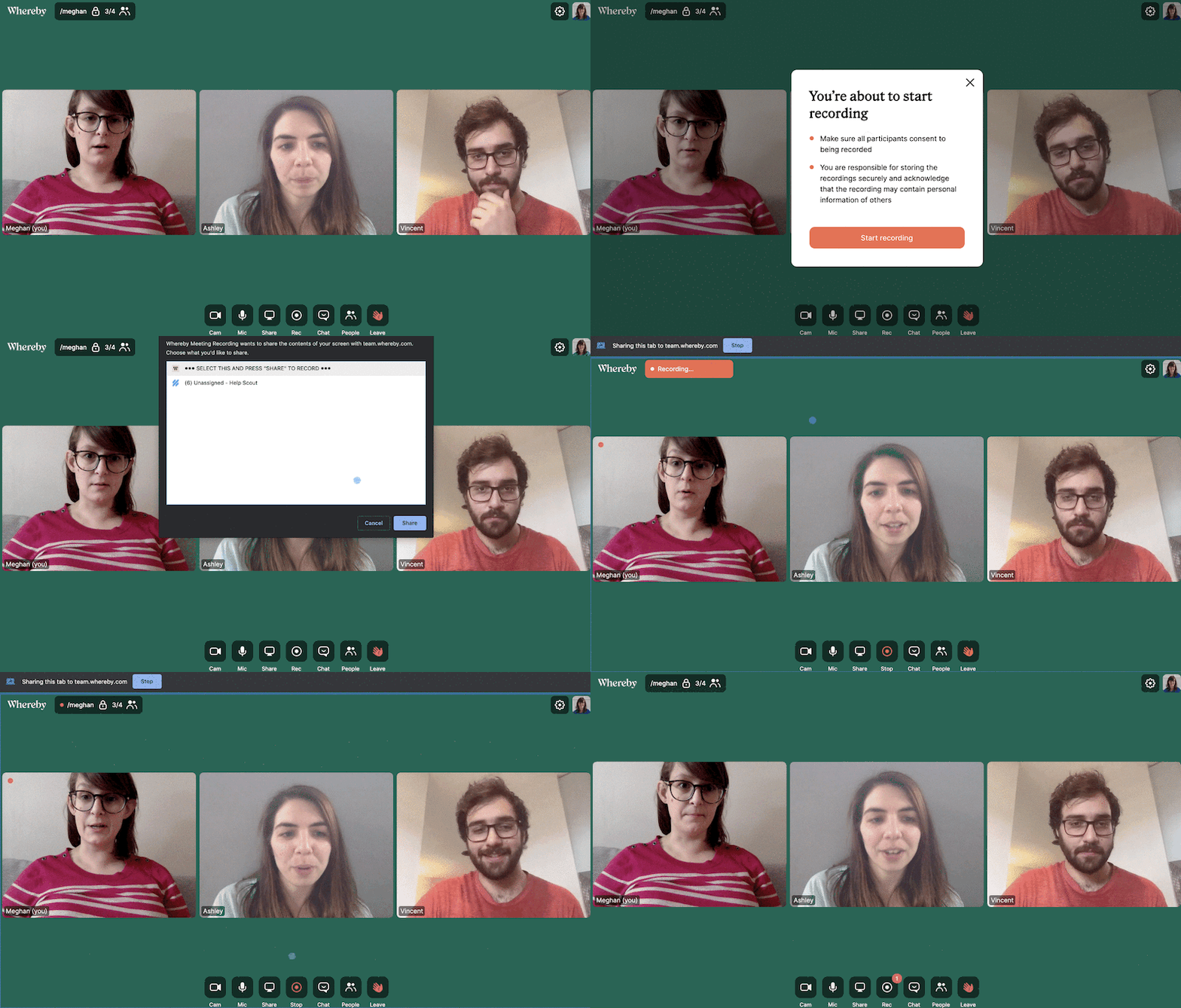
With Recording you can record your meetings with the push of a button and recordings are automatically downloaded for later use! Share it with your remote employees, or post it in your group communication channel for later viewing. Recording is available on all paid plans.
Note
At the moment, Recording is only available in Chrome and Chromium browsers on a desktop or laptop. It is not available on mobile devices.
It's only possible to record a Chrome tab only, and this is automatically selected. There isn't an option to select the entire screen or an app window.
When recording a meeting while using the YouTube integration, any audio from the YouTube video will not be captured in the recording. If you need to capture audio from the video you're viewing in the Whereby recording, we recommend sharing your screen with audio.
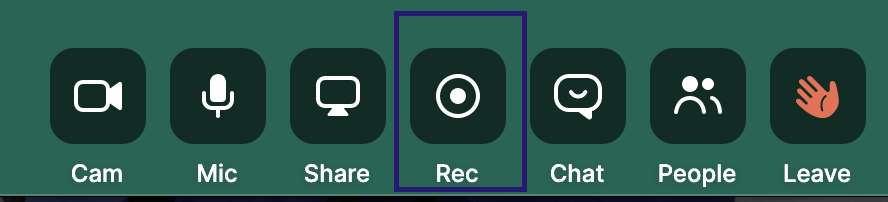
Go to the room of your choice and start a recording in your room at any time by clicking on the Recording button in the bottom toolbar.
After clicking this button, you'll get a notification that has some best-practices advice and also lets you know that you're responsible for storing your recordings. Click Start Recording to go to the next step.
The final thing that you'll need to do is allow Whereby to see the contents of the selected tab:
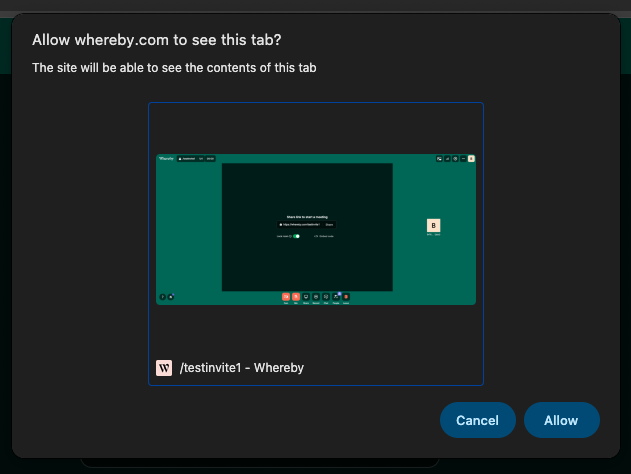
After clicking Allow you'll be taken back to the view of your room. An animation will then appear on top of your room name letting you know you're recording. Your guests will also see this animation as well:
