
Delete a Room
Who can use this guide?
Room Owners
All plans
If you are no longer in need of a certain room and room name, or would like to transfer the room to another account, you can delete the room from your rooms list.
Make sure you are signed in and navigate to your rooms list located on your account dashboard. Once you are logged in, follow the instructions below:
Delete a Room on Desktop
From the Rooms list, you can click on the three dots next to the room name then select Delete to delete it.

You'll be asked to confirm that you want to delete the room before it's completely removed. When this action is complete, all room customization will be removed as well.
Delete a Room on iOS
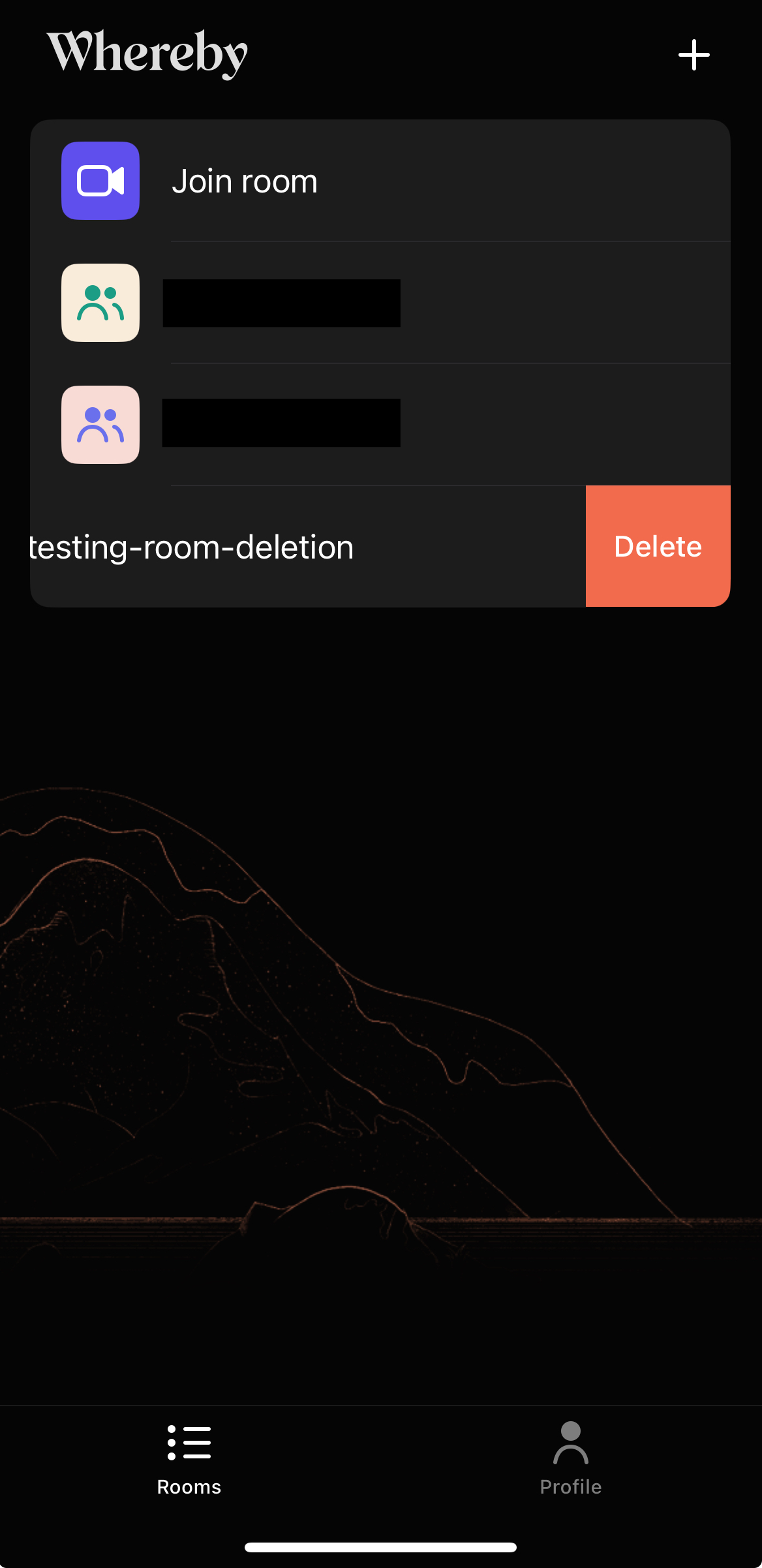
Once you're in the iOS app, swipe to the left on the room that you'd like to delete to reveal the Delete option. To finish, tap the Delete option and confirm! This room will now be available for another user to own.
Delete a Room on Android
You can delete rooms on Android from your Dashboard by tapping on the three dots to the right of the room you want to delete. To finish, tap the Delete option and confirm the deletion! This room name will now be available for another user to own.