
Manage Team Members in Paid Plans
Who can use this feature?
Account Admins
Organization-based accounts (Business and some legacy Pro plans)
Want to share your Whereby subdomain and account with the rest of your team? Invite them as Users.
Quick Answers
What is the difference between Admin and User level permissions?
Admins: Administrators added to the account will be able to add other users, adjust the company-wide branding for the account, and edit billing information as needed.
Users: Users will receive their own Personal room and can adjust the branding in their own room. They cannot add other users or adjust billing information.
Can I add users to my Pro plan?
Our current Pro plan is designed as an individual-use account only, so there isn't a way to have multiple logins or hosts. If you're looking for a way to have multiple hosts on one account, we've created the Business plan!
Add Team Members
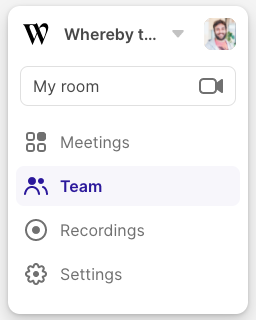
Go to your Dashboard and click on the Team section:
From this page, you can see a list of users that are in your organization, as well as if they're an Admin or not. If you are an Admin, you'll see the option to add members.
You can add one email at a time, or multiple emails separated by a comma. Be sure to choose the appropriate role (Admin or User).
After clicking Send invite, the users will get an email in their inbox letting them know they've been invited. Once they accept the invitation from the email, they'll be added to the team. For detailed instructions on accepting a Team invitation, see our Accept an Invite to your Organization article.
Remove Team Members
Go to your Dashboard and click on the Team section.
From here, you'll find a list of users within your organization. Click the 3 dots over the Team Member you'd like to remove and click Remove user.
After confirming this is the person you want to remove, click the Yes, Remove button.
Edit a Team Member's Permissions
Go to your Dashboard and click on the Team section.
From here, you'll find a list of users within your organization. Click the 3 dots over the Team Member to see the available options for them. If they're a User, you'll see the option to make them an admin, or the option to remove them as an admin, if they already are one.
Confirm the changes in the pop up window to complete the edit!