
Download your Recording
Who can use this guide?
Room Owners and Business Users
Pro and Business
Note
Recordings are stored locally in your browser cache, so they will only be available on the device and browser that they were originally recorded on. If you log in to your account from a different computer, these recordings will not be available for download.
Your recordings are also automatically downloaded immediately after your meeting. We do not store any recorded meetings in our servers, and there isn't a way for us to recover lost recordings!
In rare cases, Chrome extensions can interfere with the download process. Try temporarily disabling them and then attempt the download again.
Steps
When you're done with your meeting, or when you want to stop recording, click the Stop sharing button (if you hid the bottom notification, click the Recording button again).
After you end the recording, the recording will be automatically downloaded to your local device's downloads folder. You can also hover over the recording button then click on Get Recordings to access your previously saved recordings.
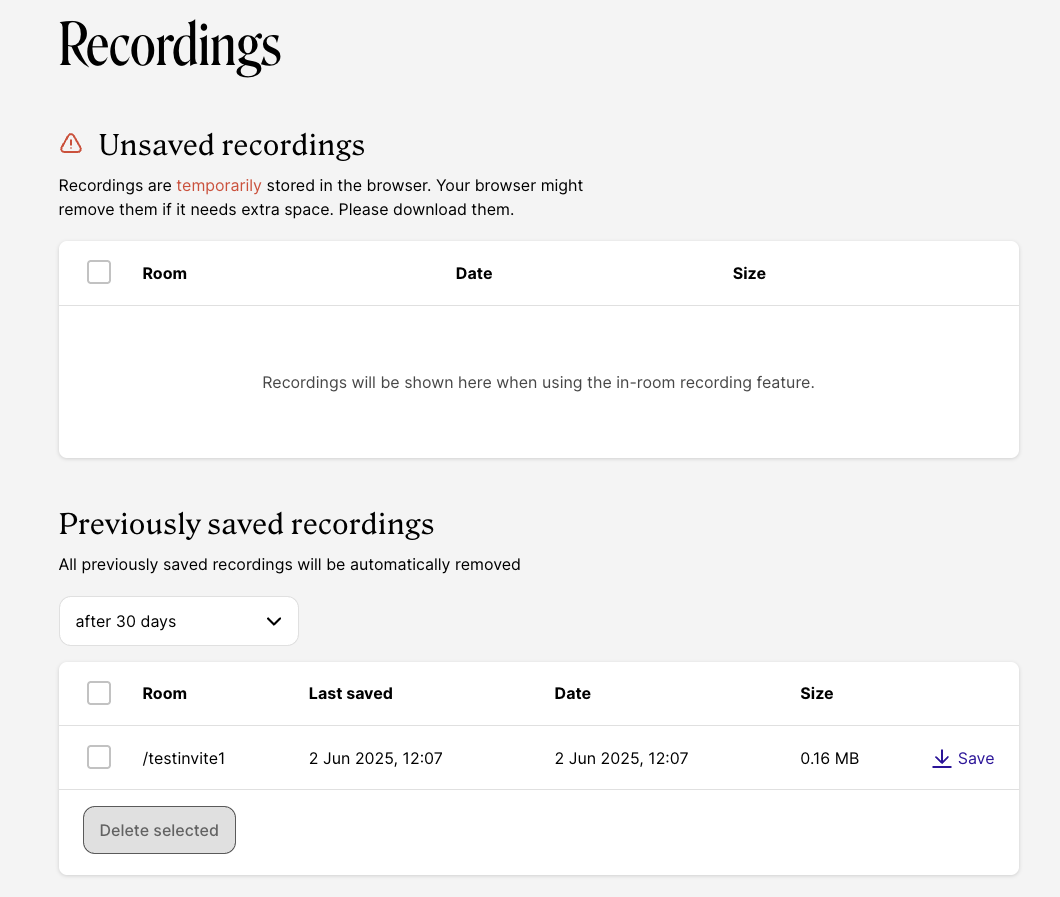
You can also hover over the recording button then click on Get Recordings to access your Recordings page. This will show your new and historical recordings, currently stored locally in your browser's cache. From here, you can download multiple or just one recording by pressing the "Save" button. The recording will be downloaded to your device. You can also select when you'd like previously saved recordings to be automatically removed from your Recordings page.
Having trouble locating the file? Try searching your computer for files with "Whereby" in the file name.
Note
Recordings are saved as .webm files, which are web-optimized video files. These files can be directly uploaded to many different sites and programs like YouTube and Slack, but they can also be converted to a different file type if necessary. You can find full details for viewing and sharing Recording files in our How to Share and View Your Recordings article.