
Recording Best Practices
Who can use this guide?
Room Owners and Business Users
Pro and Business
Recording is a great tool that can enhance the way you and your team collaborate. To make sure that you get the most out of Recording, we recommend sticking to these guidelines for best practices. This will also help to prevent any lost recordings, and ensures that the privacy of your guests is maintained. Below are the main things that you need to keep in mind during each step of the process.
Before Recording
Whereby recordings are stored locally in your browser and are also automatically downloaded to your device. We recommend clearing your browser's site data, cookies, and cache prior to making a recording, to help ensure that your browser does not run out of space. (This will log you out, so you'll need to log back in afterwards.) Please ensure that you've downloaded any previously recording meetings before doing this, so they aren't erased.
Note:
The size of the recording can vary based on different factors, but as a rough estimate, one hour of recording will take up approximately 450MB of space.
⚠️ If you have your cache set to clear on close, your cache will be limited to 300MB!
In rare cases, Chrome extensions can interfere with the download process. Try temporarily disabling them and then attempt the download again.
Start your Recording
Hover over Recording and click Start Recording
You'll see a pop-up box to ensure you know to get consent from participants and acknowledge that you're responsible for the storage of recordings, etc.
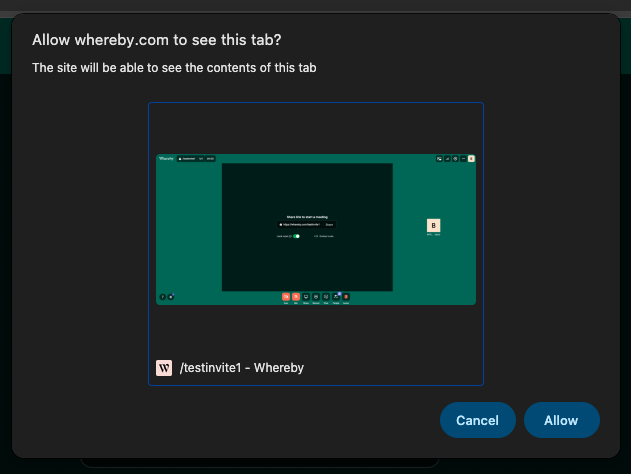
Select to allow Whereby to see the contents of the selected tab:
End your Meeting and Recording
It's critical that the Recording is ended by clicking on the Stop Recording button. If not, recordings may not save correctly, or at all. To prevent data loss, the recording must be ended before leaving the room.
Save your Recording
Recordings are immediately saved automatically after stopping the recording. Recordings are also stored locally in your device's browser cache; they are not stored on the Whereby servers. You can access your recording immediately after ending it via the Get recordings button that shows in the room. You can also access your stored recordings directly from your Dashboard in the Recordings section in the sidebar.
Both options will take you to the Recordings page, where you can access the recording:
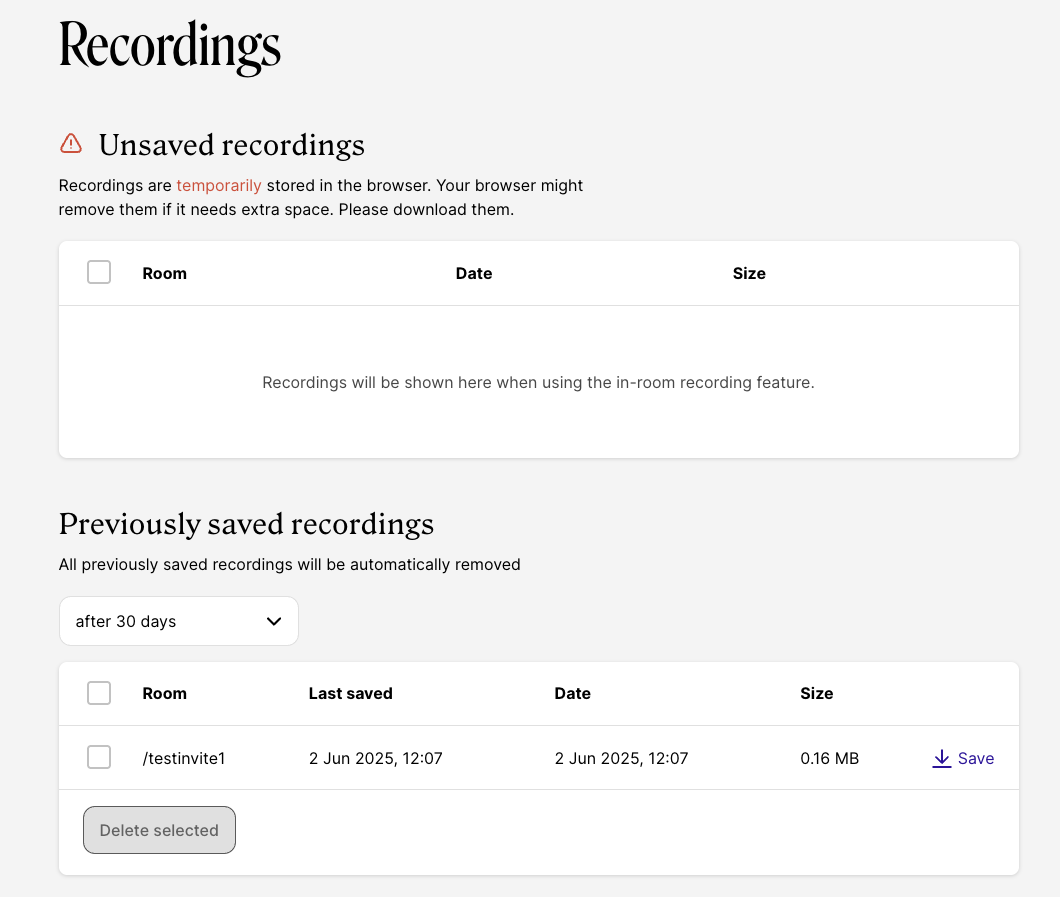
All previously saved recordings will be automatically removed based on the setting you choose.