
Troubleshoot Screen Sharing Issues
Browser Screen Sharing Permissions
Chrome and Chromium-based Browsers
At the moment, Chrome doesn't have any specific settings related to screen access. If you're running into problems or getting an error, go to the Operating System Permissions area below for further troubleshooting.
Firefox
When you first use screen sharing in Firefox, you'll see a pop up that asks if you'd like to allow Whereby to access your screen:
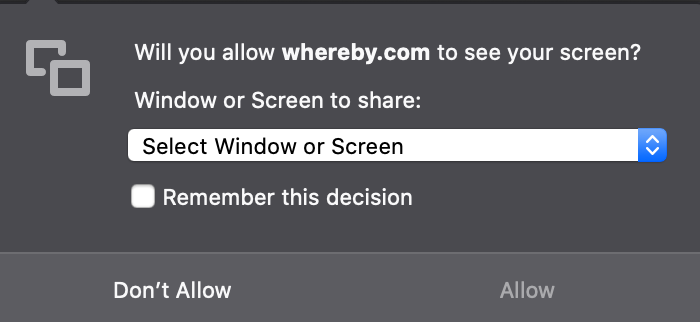
If you initially clicked Don't Allow, Firefox won't show this prompt again when you try to share your screen and won't show any sharing options. In this case, you'll need to manually reset the permissions for screen access by doing the following:
Click on the "Site information" area, just to the left of the website address
Locate the "Share the Screen" item in the list, and click the "X" next to it
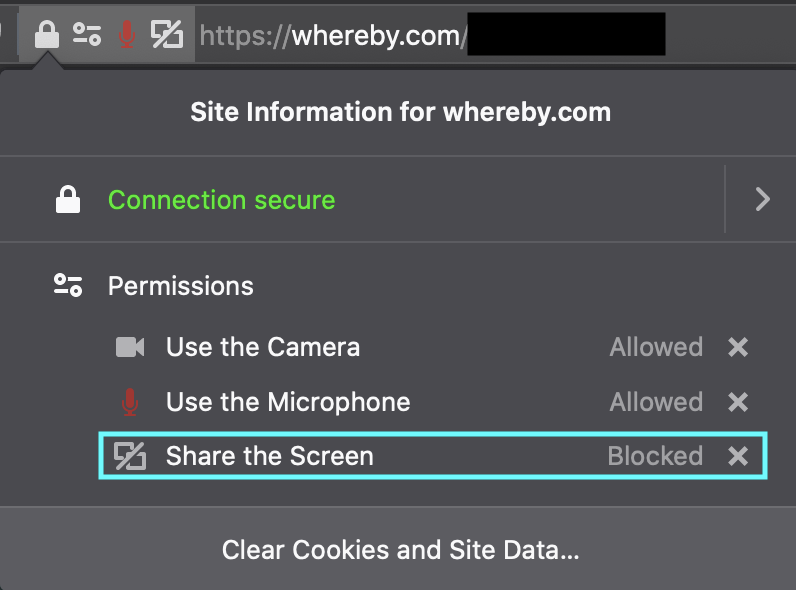
Refresh the page, and click on the Share button in the bottom toolbar to re-prompt the screen sharing notification
Operating System Permissions
MacOS
For devices using macOS Catalina or newer, Apple has introduced system-level permissions for accessing screen sharing. If you've recently updated or upgraded your device and can't screen share anymore, you'll need to update the preferences by doing the following:
Open up System Settings on your Mac
Click on the Privacy and Security section
Scroll down to the Screen & System Audio Recording section, and ensure that your browser is toggled on.
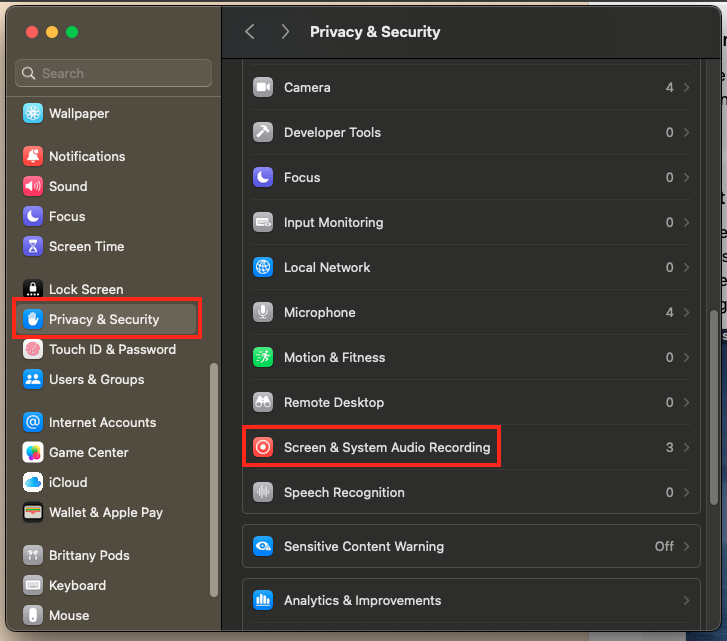
After doing this, fully quit your browser and reopen it so the new permissions are applied
Windows
At the moment, Windows doesn't have any system-level permissions for screen access. If you're running into problems or getting an error, double-check your browser settings.