
Hybrid Meetings
Who can use this feature?
Room owners on a Business or Pro plan can start a session
Users on a desktop, laptop, or mobile device (not available in-app)
Note
This feature is currently in Beta. As such, its functionality, design and commercial aspects are subject to change at any time.
With remote work becoming more of a constant reality, users will likely find themselves coworking from the same location.
Whether it's an office or a collaborative space, our users will no longer have to worry about muting themselves to avoid any echo from the other person in the same space.
Hybrid meetings will recognize the loudest speaker in the same co-location and only transmit the sound coming from their device.
Quick Answers
How do I know who is in a co-location group?
You can tell by the colored outline on a user's video feed as shown below:

How many co-located groups can I set up?
You can create up to 10 different groups for different offices and teams.
Does it work on iOS?
Currently, the co-location feature is not supported in the Whereby app, but you can use the app to call in as a remote participant.
Co-location does work in Safari and Chrome on iOS, but in rare cases, we've encountered issues with the mic switching mechanism. For the best experience, we recommend using desktop or laptop devices.
How to start a hybrid meeting
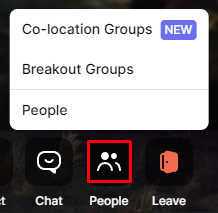
Hosts will be able to start setting up a co-location session by accessing the People tab and clicking on the "Co-location Groups" button, like so:
This will open a menu on the side where you can rename different locations (by clicking the 3 dots next to the location) and organize users into different groups before starting the session.
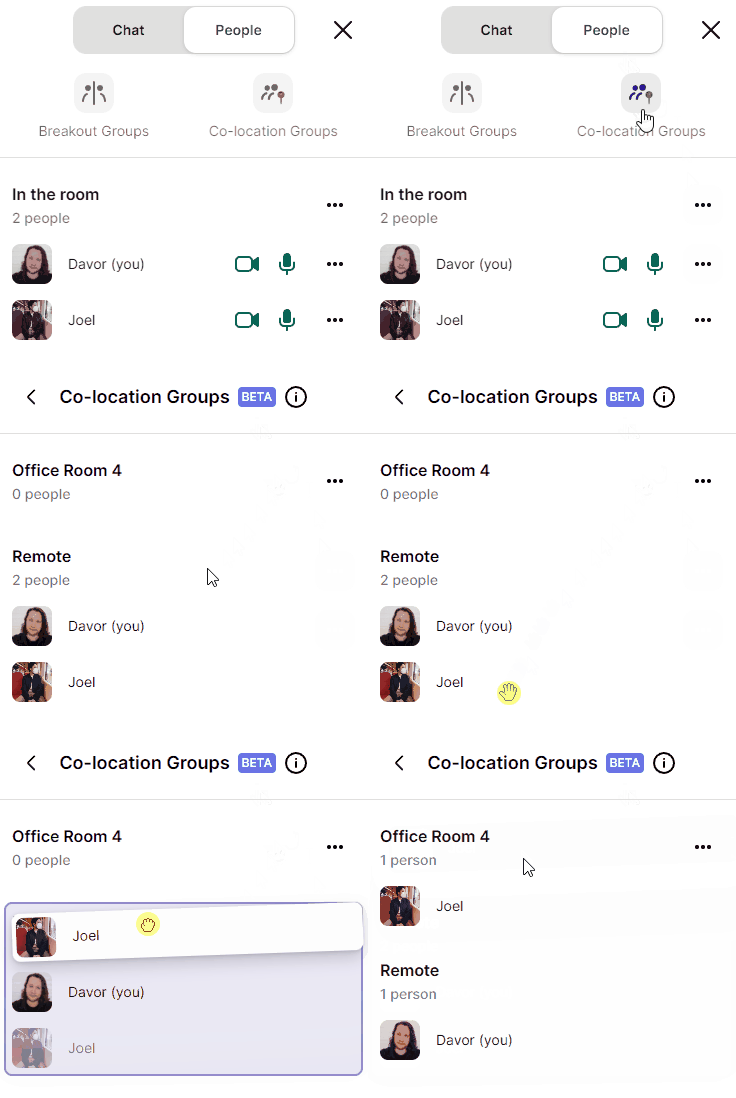
Once the users are organized and location names are set, you can click on the "Start session" button.
You can end the session by clicking the "End session" button that is now replacing the Start button.
How do hybrid meetings work?
When two users are attending a meeting from the same location after the co-location feature has been set up (and they're both unmuted), our implementation of this feature will detect which of the users is currently louder and transmit only their audio to the rest of the call.
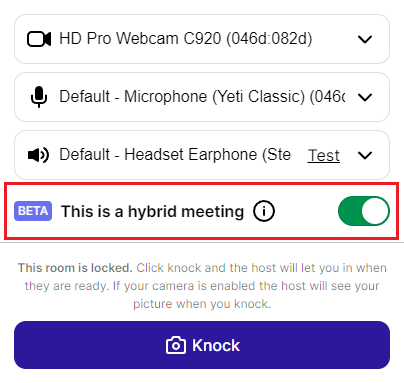
Only the host can start this co-location session, but guests can request the host to set up a co-location session before joining the call. This can be done from the pre-call review by clicking on this toggle button:
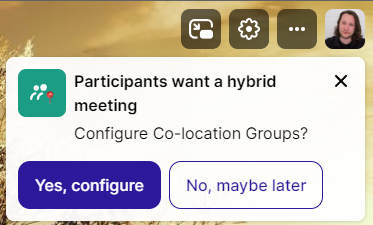
This will prompt the host with the following notification once they let the user into the room:
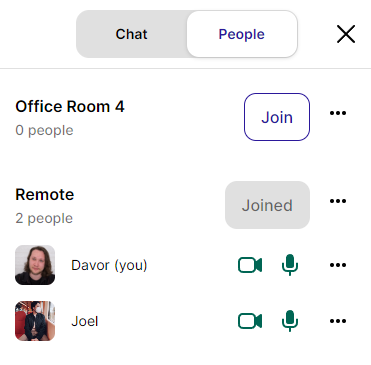
Once the session has started, users can freely move between the co-location groups by clicking on the different "Join" buttons accessed from the "People" tab:
Note
Guests can't start a co-location session, but they can indicate that they are in a situation that warrants it in the pre-call before knocking/joining the room.