
Change Between the Annual or Monthly Billing Model
Who can use this guide?
Account Owners
Pro and Business
With the Annual billing model for a paid plan, you can simplify your accounting and avoid potential international transaction fees by paying for a plan on a yearly basis. The Annual model also includes a discount when compared to the Monthly model because the full year's subscription is paid in advance.
You can change between these models as necessary, but note that the change won't take effect until the Next charge date listed in your Subscription details.
Note: it's only possible for Business plan holders to switch from monthly to annual, but not from annual to monthly. If you need assistance, please use the Help button in your account to contact our support team.
Desktop
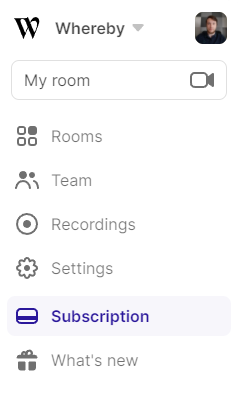
Log into your account and navigate to the "Subscription" section from the dashboard on the left side of your screen:
From there, scroll down to the "Subscription details" section. Besides changing between the Monthly and Annual payment models, you can also edit the number of licenses (if you're on the Business plan):
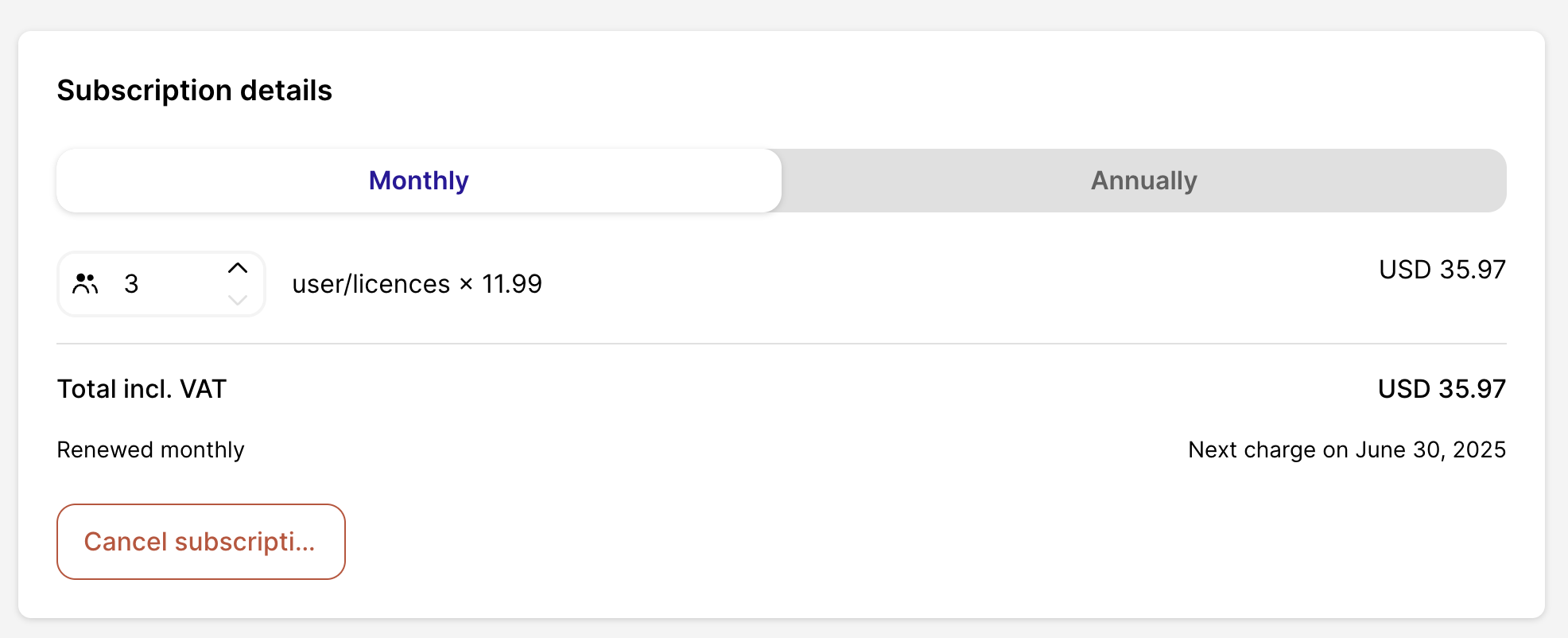
Clicking "Save changes" will apply the changes you've made to your billing model and billing frequency. You'll receive a confirmation message: "Your subscription has been updated".
iOS
Currently, it is not possible to adjust your billing frequency on the iOS app. Please visit your subscriptions page in a Safari or Chrome browser and follow these steps:
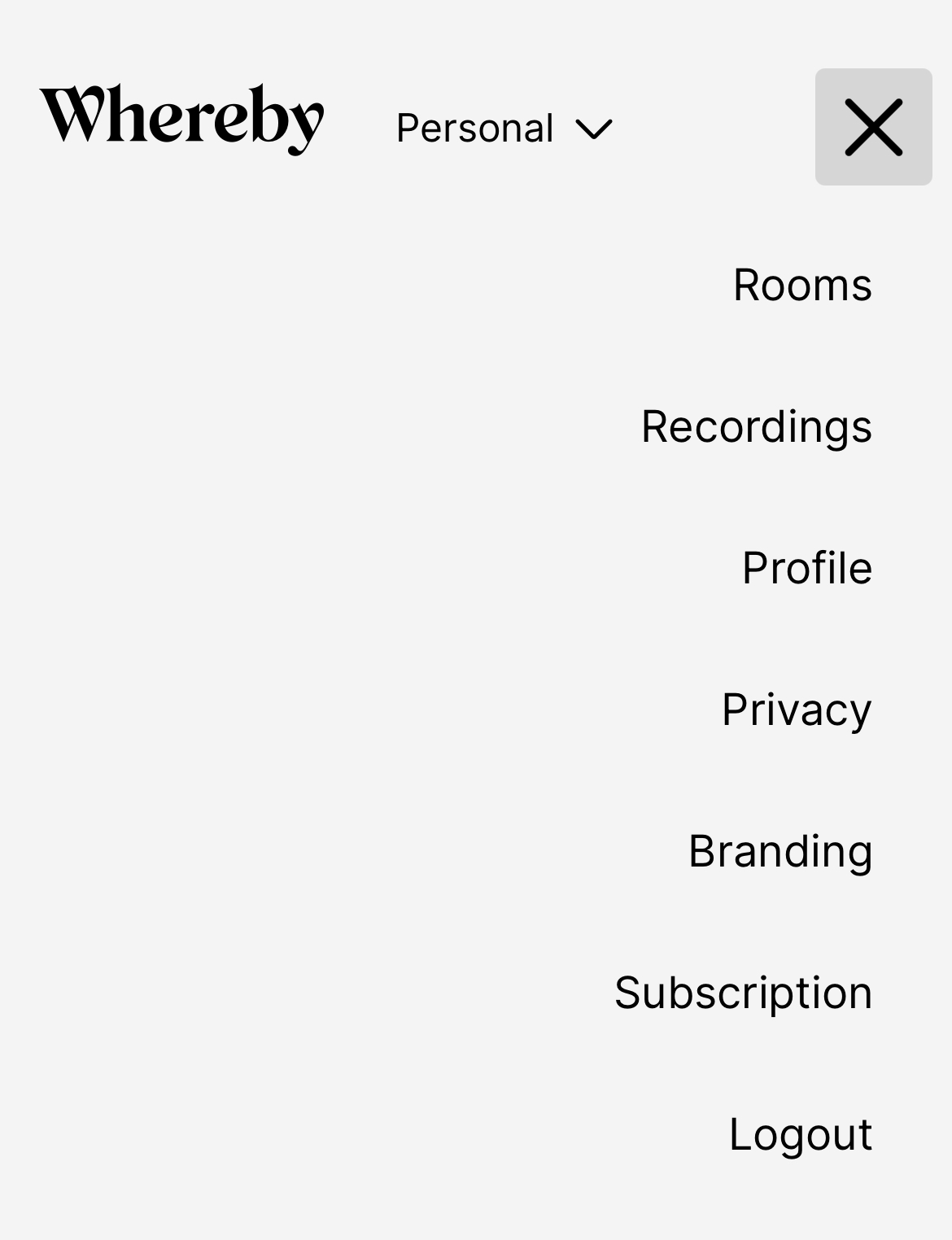
Tap on the menu in the top right corner, and then tap choose "Subscription":
From there, scroll down to the "Subscription details" section. Besides changing between the Monthly and Annual payment models, you can also edit the number of licenses (if you're on the Business plan):
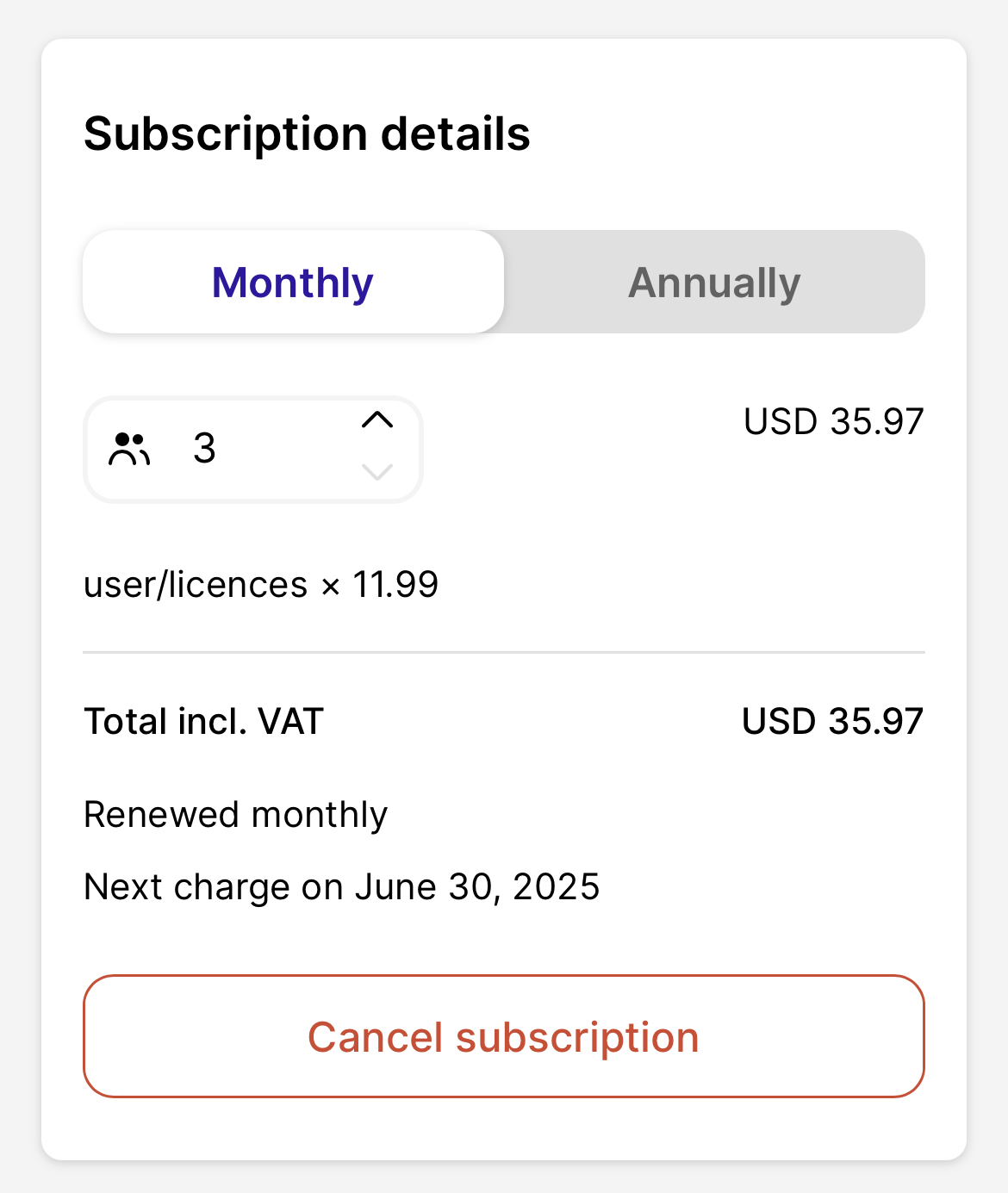
Clicking "Save changes" will apply the changes you've made to your billing model and billing frequency. You'll receive a confirmation message: "Your subscription has been updated".
Android
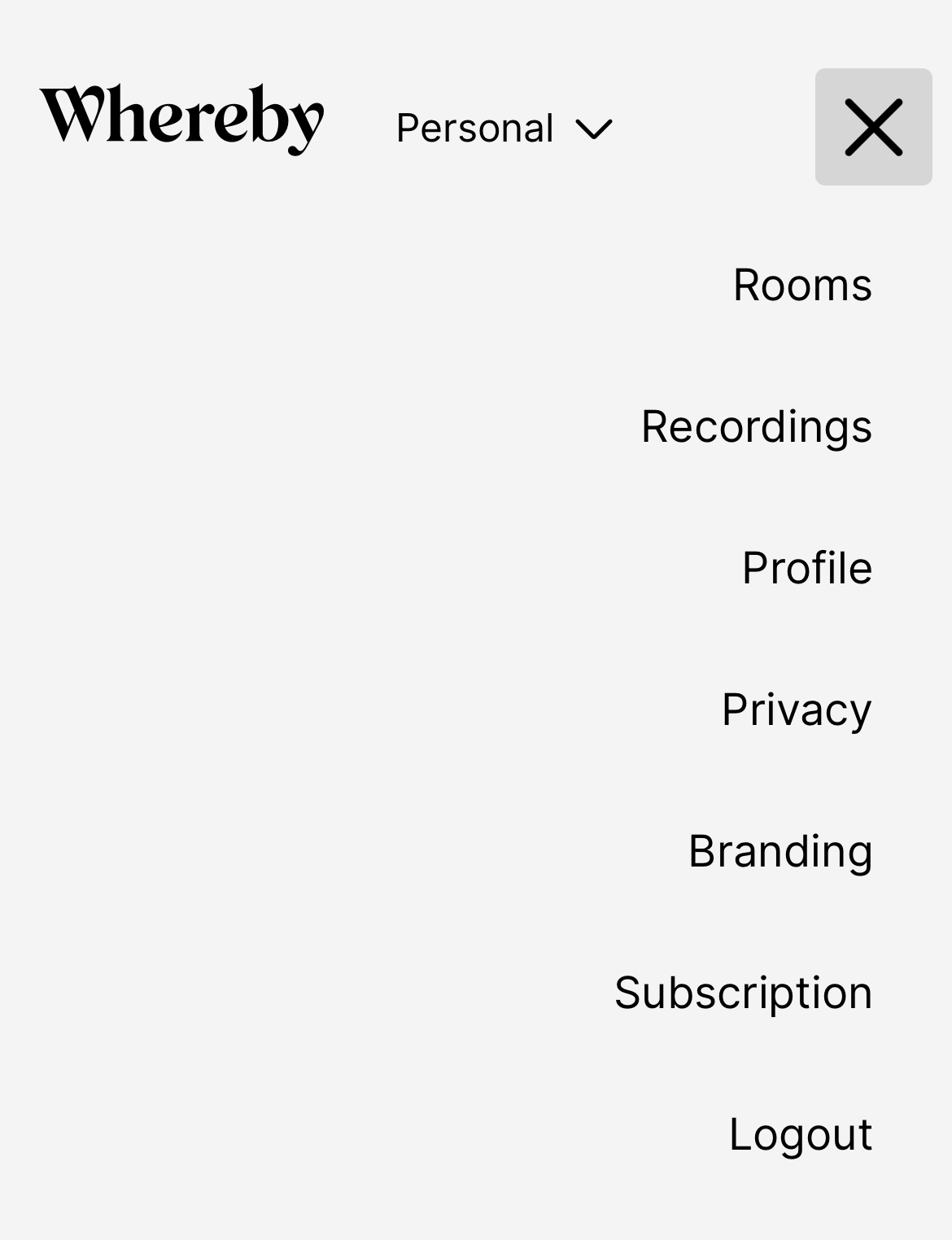
In your Chrome browser, tap on the menu in the top right corner, and then tap choose "Subscription":
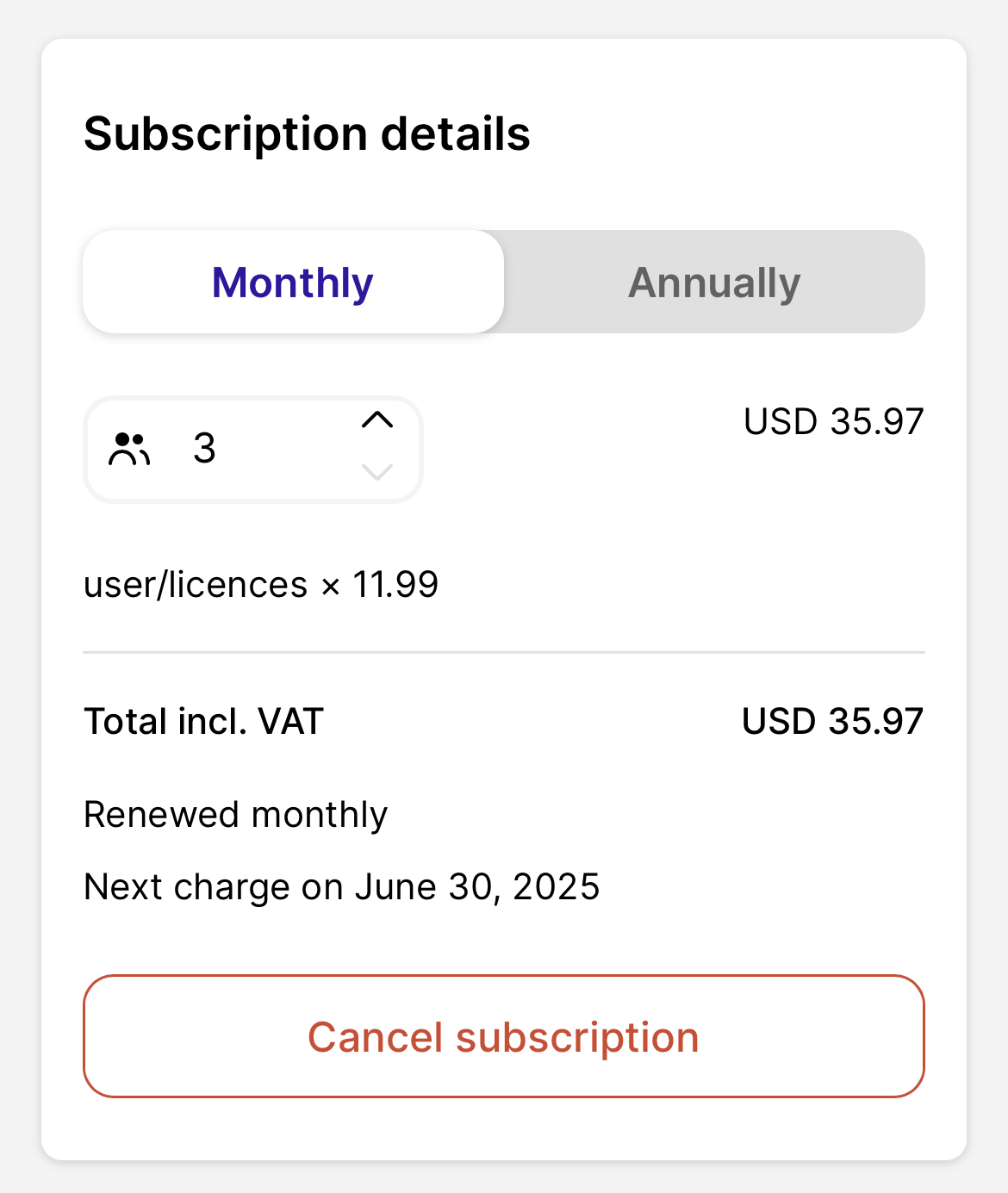
From there, scroll down to the "Subscription details" section. Besides changing between the Monthly and Annual payment models, you can also edit the number of licenses (if you're on the Business plan):
Clicking "Save changes" will apply the changes you've made to your billing model and billing frequency. You'll receive a confirmation message: "Your subscription has been updated".