Invite Others to Your Room
Meetings can be tough. Meeting software shouldn’t be. Simply share your room URL to start a meeting. Participants can join the conversation in a single click via their browser. No downloads, no logins, no hassle.
After creating an account, follow the steps below to invite others to join you for a meeting.
Note
Beginning in fall of 2021 we've started updating security features relating to rooms. The room owner must be present to host a meeting, even if the room is unlocked. To learn more you can review our article here.
Desktop
Your room name is a website URL. To invite others, you can copy and paste the URL into an email, message, or platform of your choosing. Participants can then click on the link to go straight to the room!
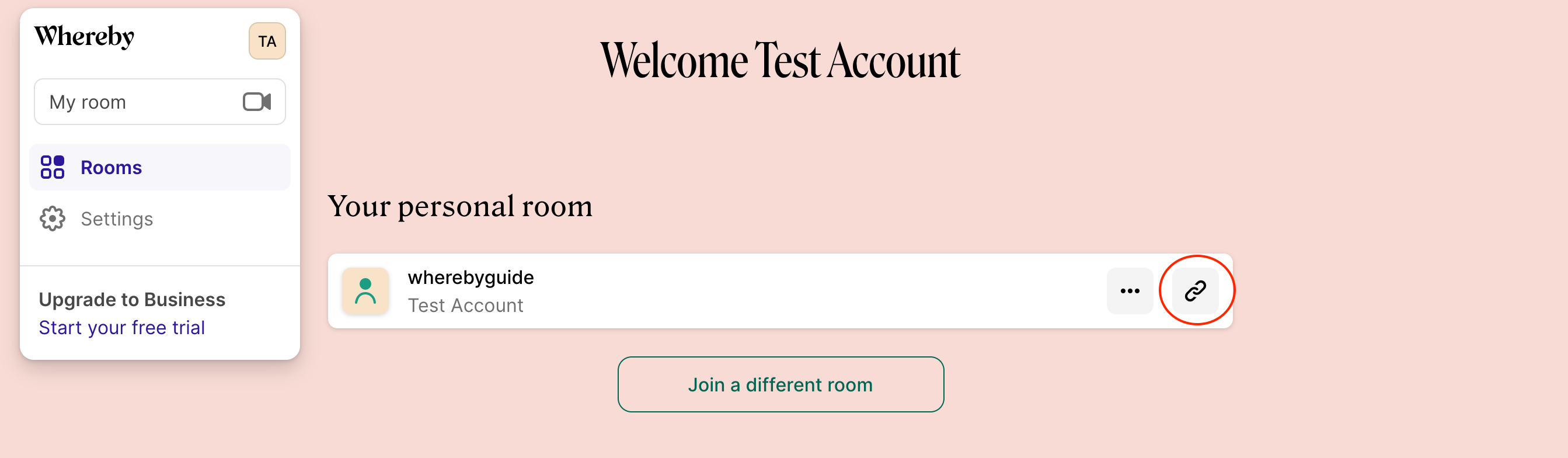
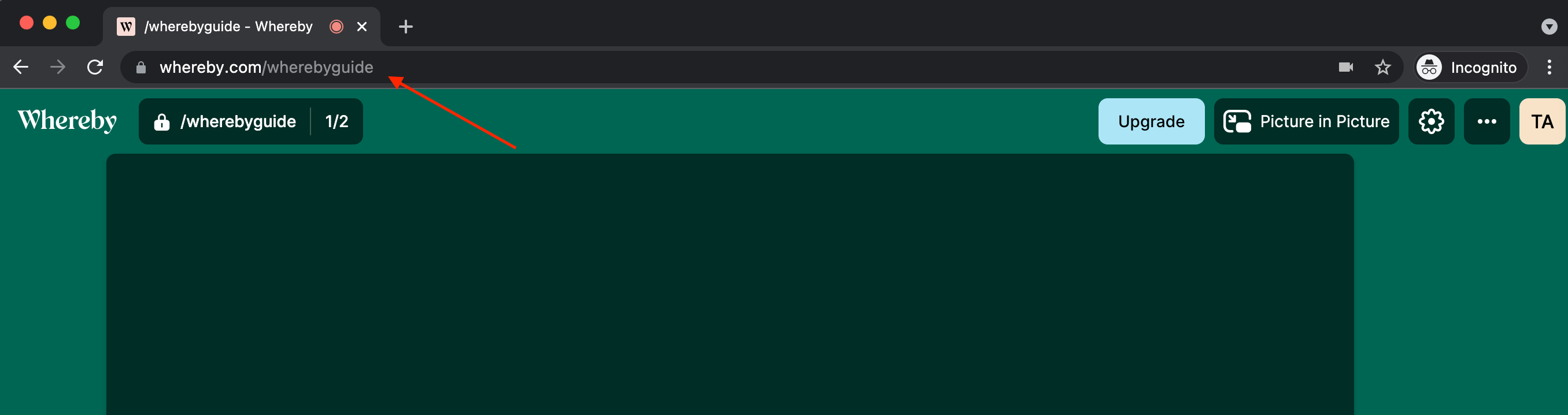
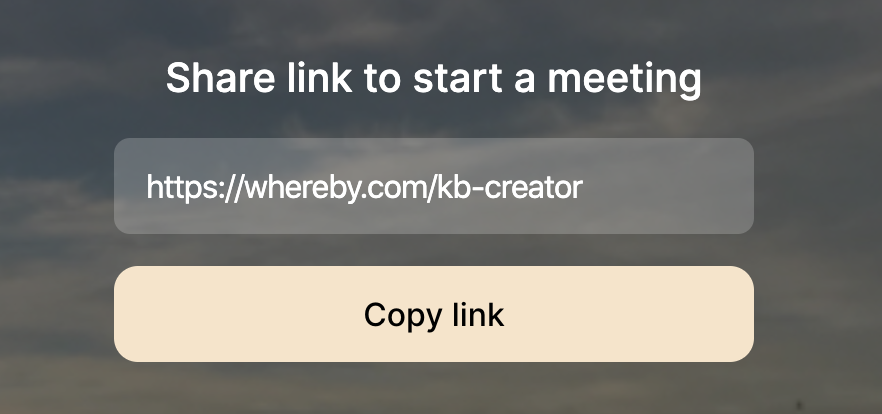
There are a number of ways you can copy the room URL:
From the dashboard:
From the address bar:
From the copy link button inside the room:
iOS
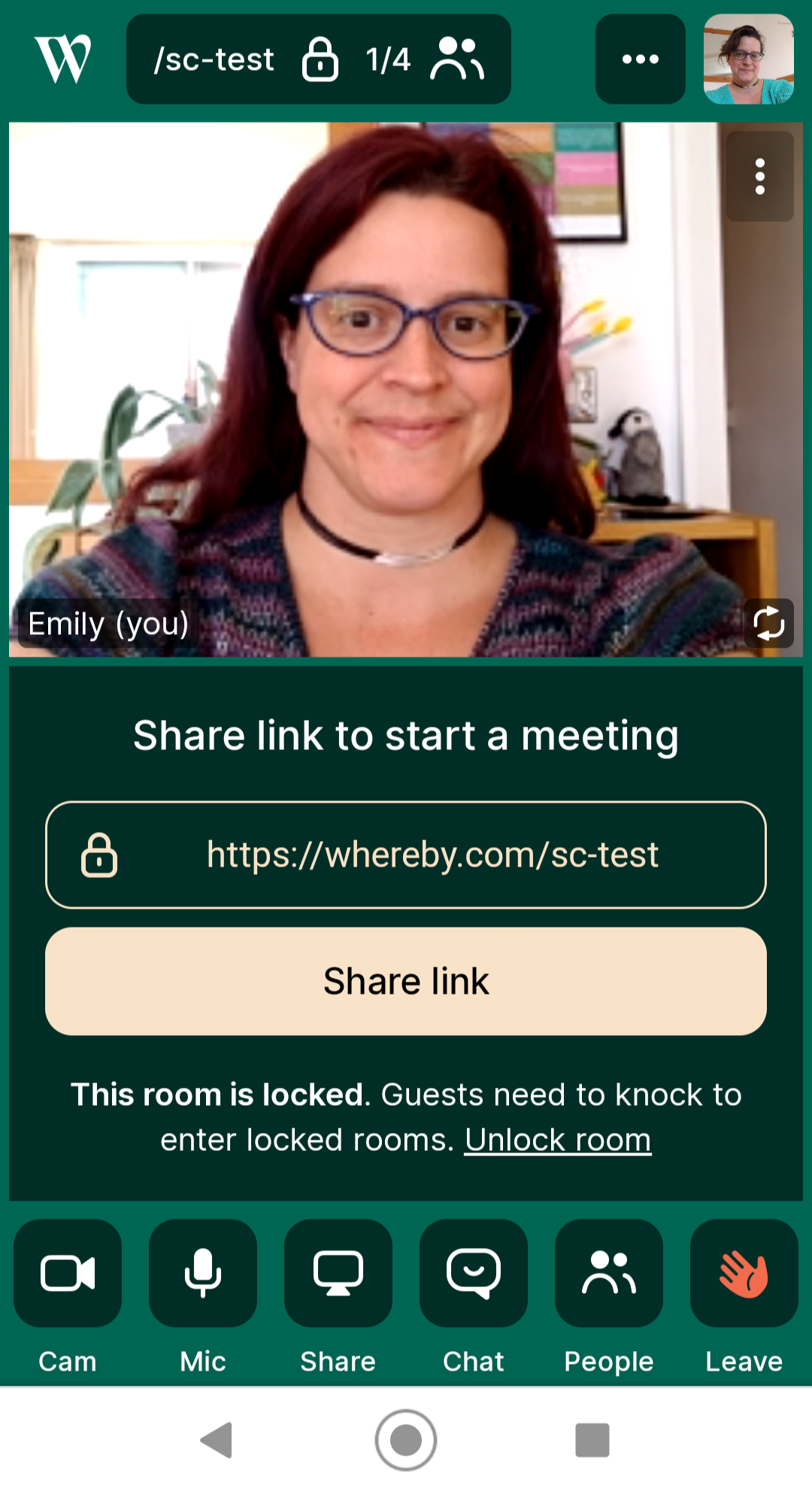
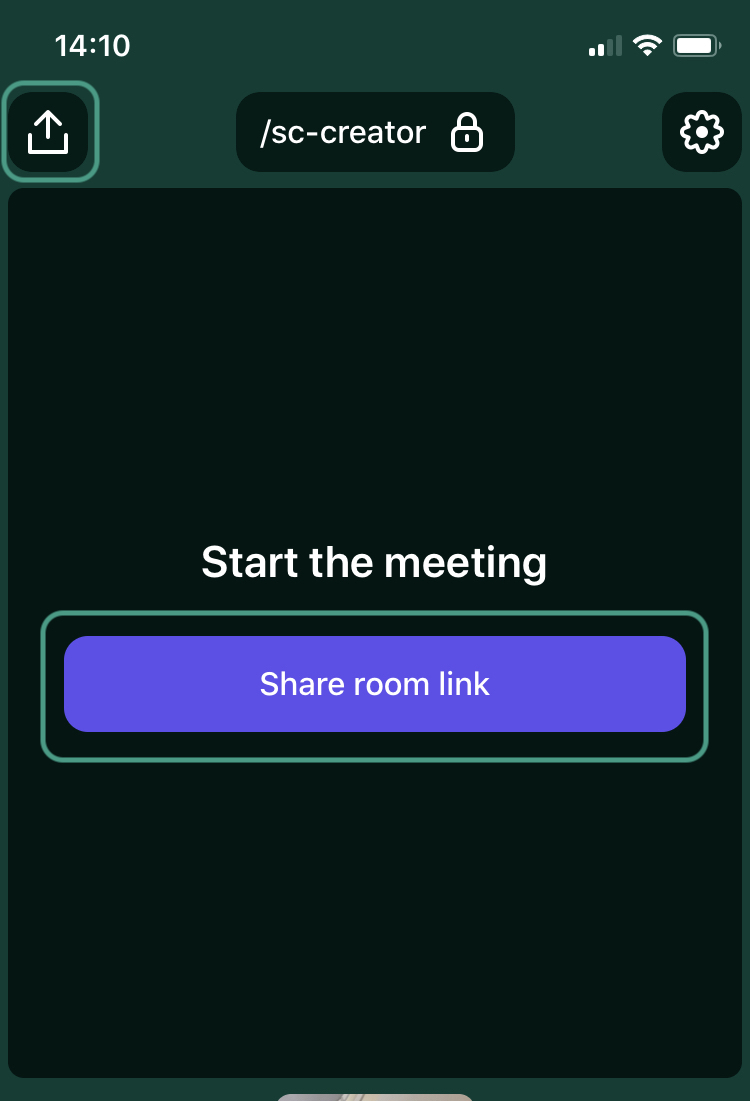
Your room name is a website URL. To invite others, you can copy and paste the URL into an email or other message. You can also use the Share room link inside the room to copy it, as shown below. Participants can then click on the link from the email or message to go straight to the room!
Android
Your room name is a URL. To invite others, you can copy and paste the URL into an email or other message. You can also use the Share Link button inside the room to copy it, as shown below. Participants can then click on the link from the email or message to go straight to the room!